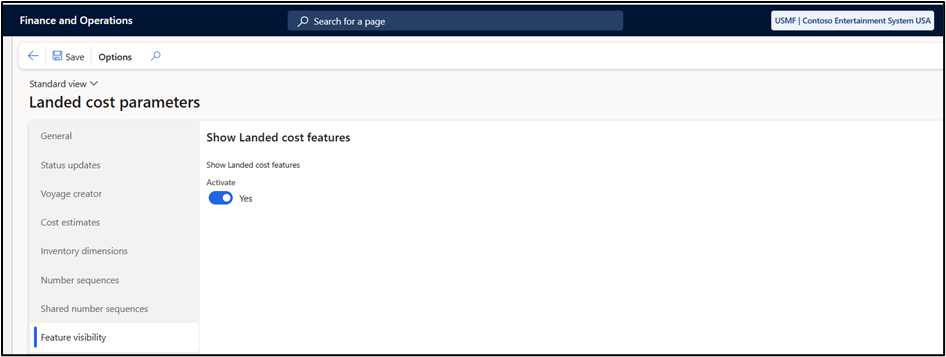
1. Landed cost Parameter : Set Landed Cost Features to Yes.
Landed Cost –> Setup → Landed Cost Parameter.
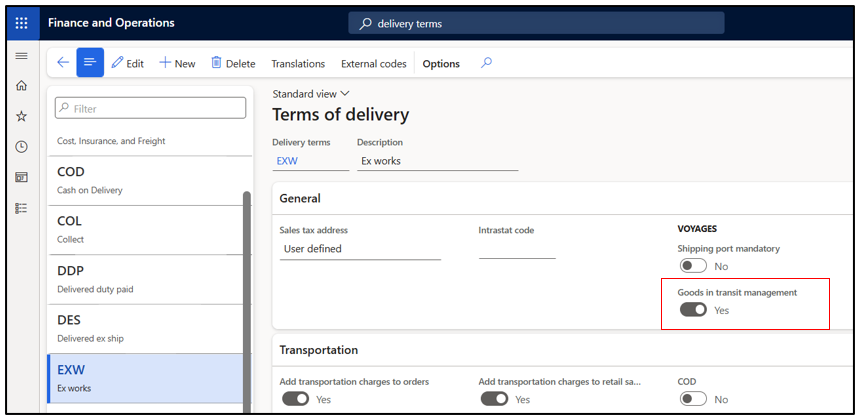
2. Terms of Delivery: Enable the Goods in Transit checkbox for the required delivery term for which you want to track Good In transit order.
Accounts Payable → Setup → Terms of Delivery.
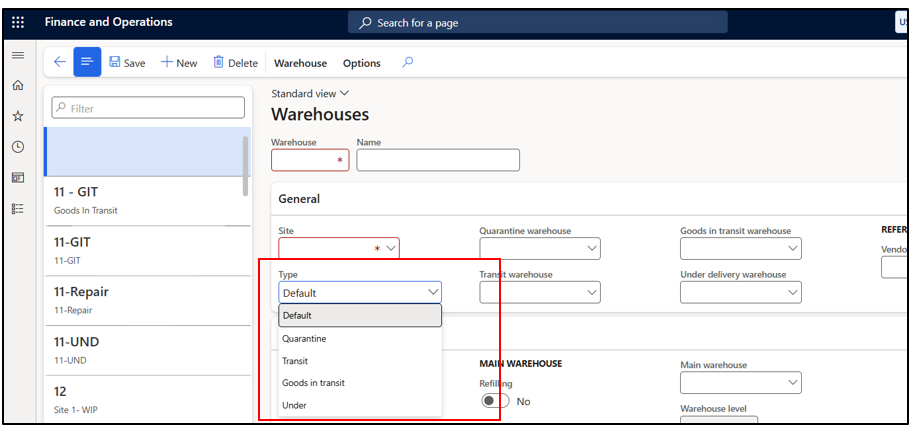
3. Set up Warehouses: After enabling the landed cost feature, two new warehouse types are available. Create warehouse with these types.
Inventory Management -> Setup -> Inventory breakdown ->Warehouses
4. Link the newly created warehouse to the main warehouse used for purchases or transfers.
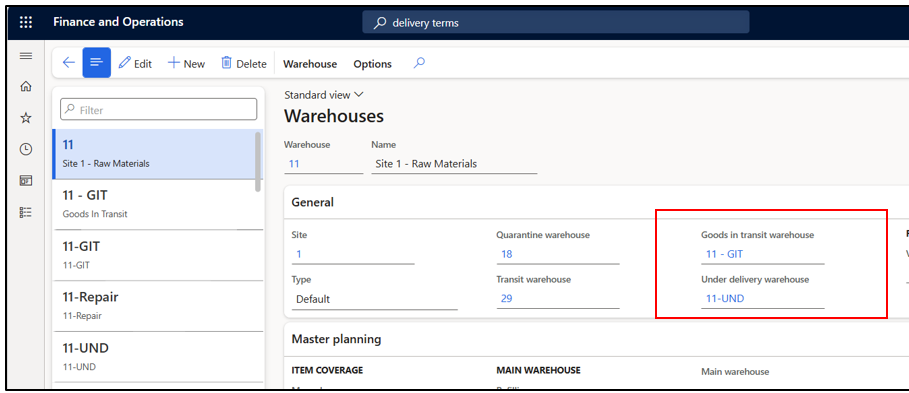
Goods in Transit (GIT) Warehouse: This warehouse will be used to process the goods on goods-in-transit orders before they’re received at the final destination warehouse.
Under Delivery Warehouse: This warehouse is used for goods that are under delivered. For example: I have received 50 out of 100 and closed the Purchase Order. The remaining would show in Under delivery warehouse.
Note: (Microsoft learns) Generally, one goods-in-transit warehouse is enough for each site if Site and Warehouse are the only inventory dimensions that are used for inventory management. If the Location inventory dimension is also used, a goods-in-transit warehouse must be set up for each combination of a site and warehouse, so that the default location can also be specified.
A default receipt location must be specified for the under-delivery and goods-in-transit warehouses.
Go to Inventory management > Setup > Inventory breakdown > Warehouses and set the Default receipt location field.
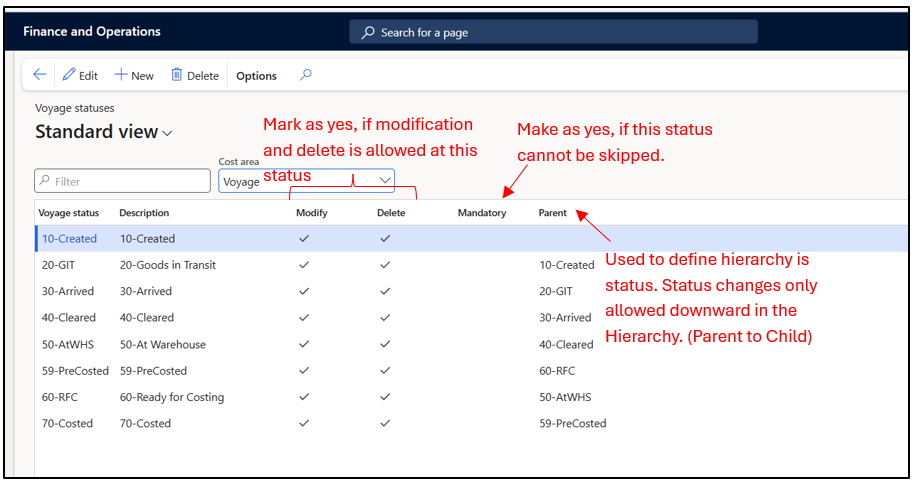
5. Voyage Status : This setup is used to track the status of a voyage. You also have the option track the status of related purchase orders, shipping containers, folios, and items on the Voyage; giving users a clear view of the current stage of each document or order.
Go to Landed Cost → Setup → Voyage Status.
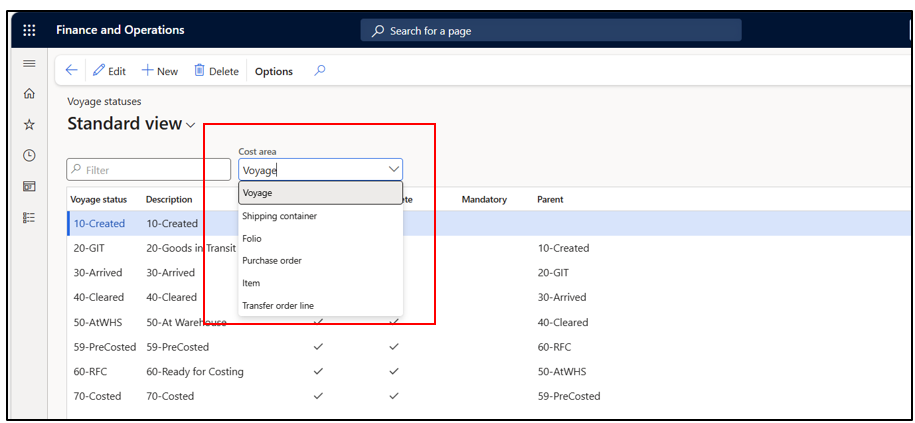
Select the respective cost area and define statuses you wish to track.
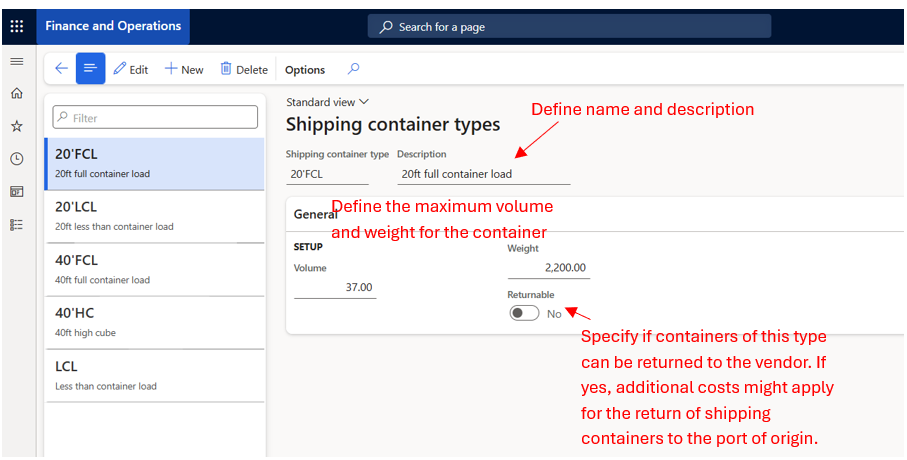
6. Shipping container Type: Shipping container types define the types of shipping containers that you can use during shipping and voyages.
Landed cost > Containers setup > Shipping container types
7. Shipping containers : While creating the voyage, the system provides option to capture the container details.
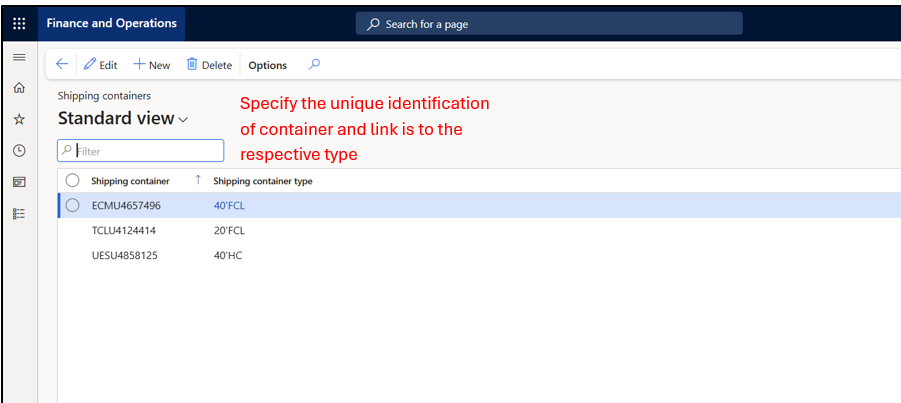
Note: Mostly used if the company owns container and the containers are often reused for shipment.
8. Shipment Ports
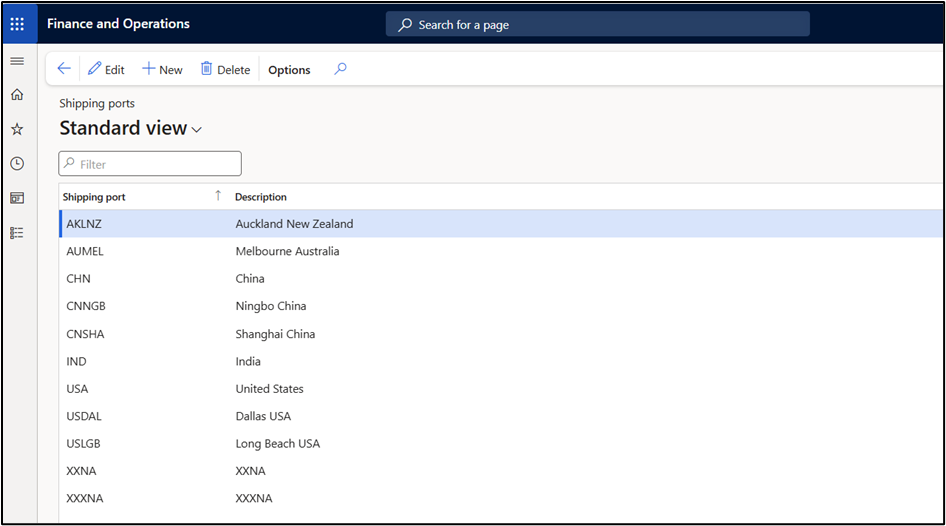
Landed cost > Delivery information setup > Shipping ports.
Shipping ports are used to define from where goods are being shipped from and are being shipped to.
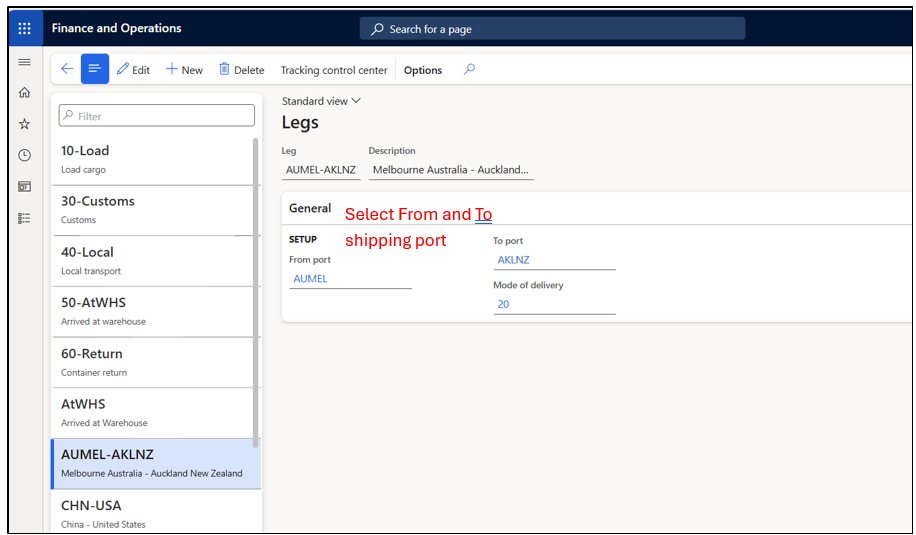
8. Legs: Legs are used to define different stages of a shipment journey. For example, a shipment from Melbourne Port to Auckland Port can include stages like cargo loading, sea transport, customs clearance, unloading at the destination depot, and local transportation.
Landed Cost -> Multi-leg journeys Setup -> Legs
Each stage is created as a separate leg in the system. The system also allows lead time to be defined for each leg, which helps calculate the expected delivery date. This is done through tracking control center functionality, which will be covered in the later blogs.
9. Journey Template
A journey is a group of transport steps (legs) between two ports. It helps calculate how long goods will take to travel from the vendor’s location to the final warehouse. By arranging the legs in the correct order in the journey template, the total delivery time can be identified.
The journey template is also used to set up automatic voyage costs. Once the journey is created, the transportation costs for moving the goods can be added on the auto costs page.
Landed cost -> Multi-leg journey setup ->Journey templates
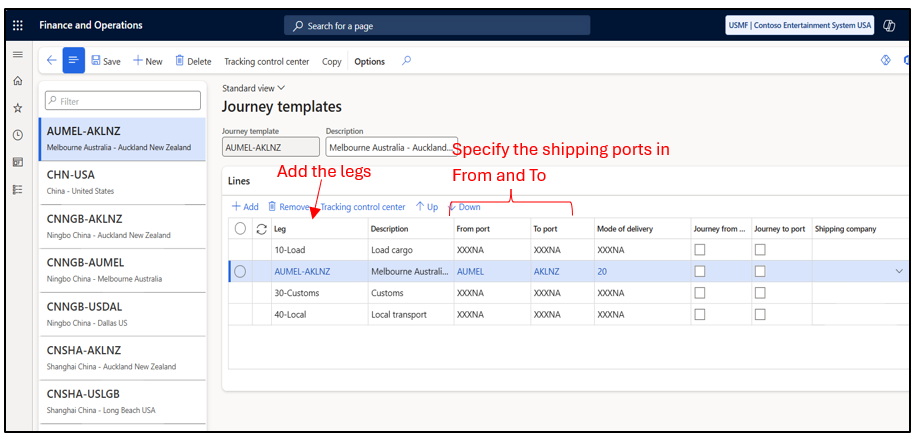
Note: Some general ports have been created with the name XXXNA. These can be used when load, customs, local processes, etc., take set number of days, so we can use the same leg in all journeys.
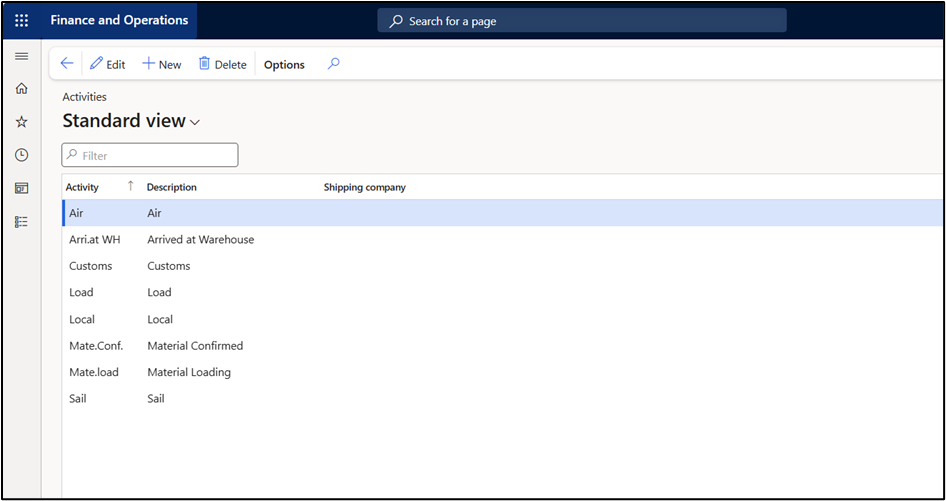
10. Activities (Optional) : The Activities page is used to set up the activities that can happen at the destination port of a leg. Users can select these activities on the All shipping containers page, enter estimated time, and compare it with the actual time taken.
Landed cost > Multi-leg journeys setup > Activities
11. Cost Type Code : Cost type codes help identify the type of expense added to the goods, such as freight, customs duty, or insurance.This setup is similar to the one we do for the Charges code in Purchase order.
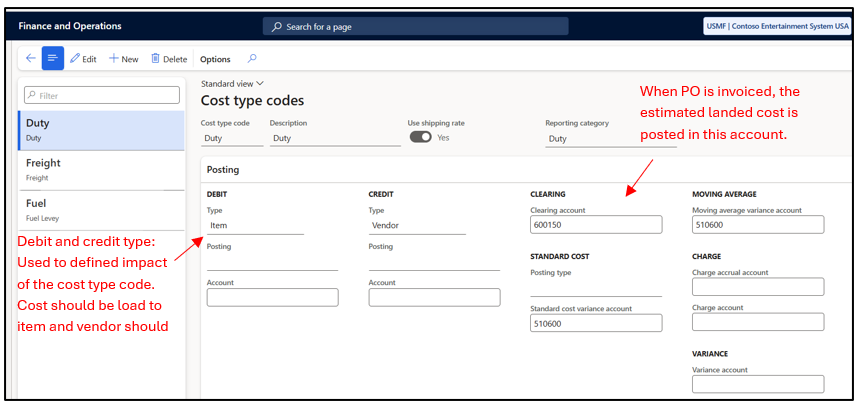
Note: There is option to set Vendor cost type group and Item cost types groups.
Vendor cost type group : Vendor cost type groups help determine how auto cost charges are found and applied to a voyage. Vendors that have similar import costs are linked together. For example, all vendors from emerging markets pay the same duty percentage for the same type of product that they purchase from an established market.
Item cost types of groups: Item cost type groups help determine how auto cost charges are found and applied to a voyage. Similar items are linked together. For example, all items that have a duty rate of 5 percent might belong to a specific cost type group.
12. Auto Cost: Auto cost is used to set up cost rules for different cost areas. Based on the details entered in the header, such as Shipping company, Mode of delivery, From port, and To port, the auto cost becomes applicable and is automatically applied when a voyage is created for those ports.
Landed cost -> Costing setup -> Auto costs
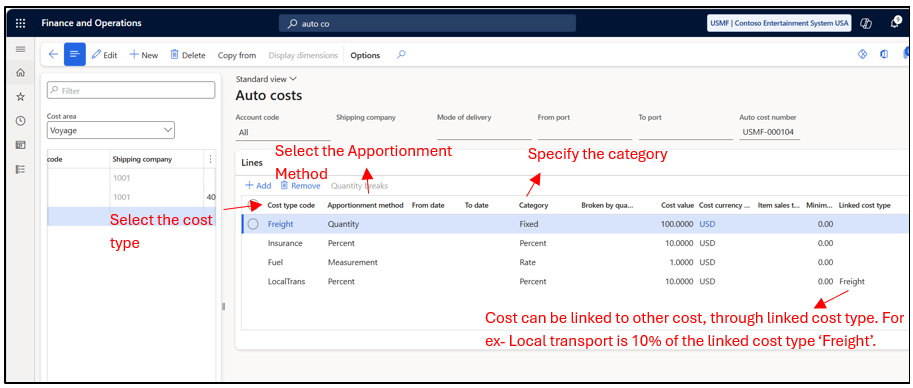
Cost areas help the system divide costs among purchase order lines. For example, a cost for one shipping container will apportion the value to all the products in that shipping container. If there are two or more shipping containers, the same cost type can be specified for each shipping container. Therefore, the container type can be used to find the correct auto cost
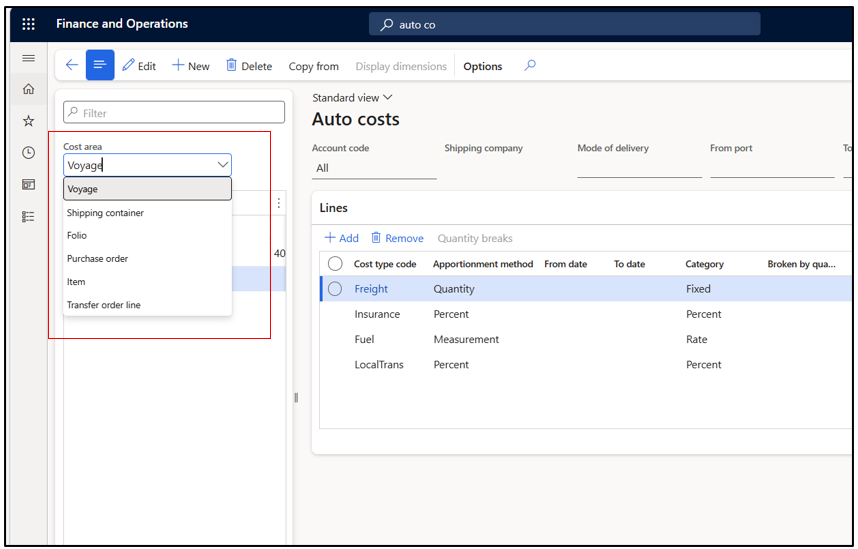
For more detail related to apportionment method refer to Auto costs setup – Supply Chain Management | Dynamics 365 | Microsoft Learn
Hope you found this helpful.
Thankyou.