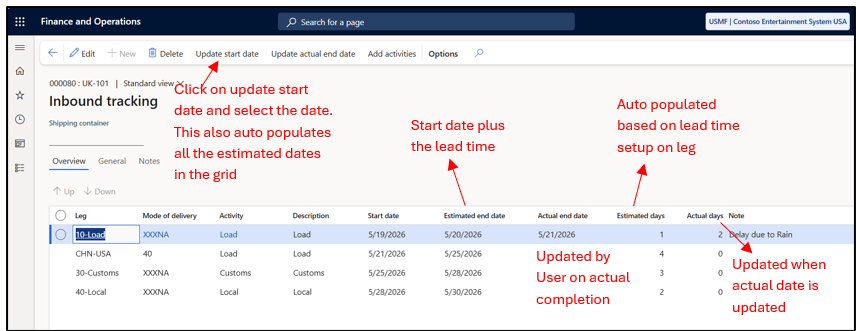
The Tracking Control Center setup is used to configure lead times and status updates for each leg of a voyage journey. This ensures that the estimated completion date for each leg is calculated accurately. When the actual end date is updated for a leg, the system also updates the status of the order (such as the voyage or purchase order line), indicating the stage of the journey that has been completed.
The Tracking Control Center setup is configured with reference to each leg in the journey. For every leg, you can define:
- The lead time for the leg
- The status that should be updated once the leg is completed
This setup also ensures that the confirmed delivery date on the Purchase Order line is updated based on changes to the estimated end date on the voyage.
Below is a snapshot of the Tracking screen on a Voyage. To access it, navigate to Voyage > General (Action Pane) > Tracking.
Accessing the Tracking Control Center
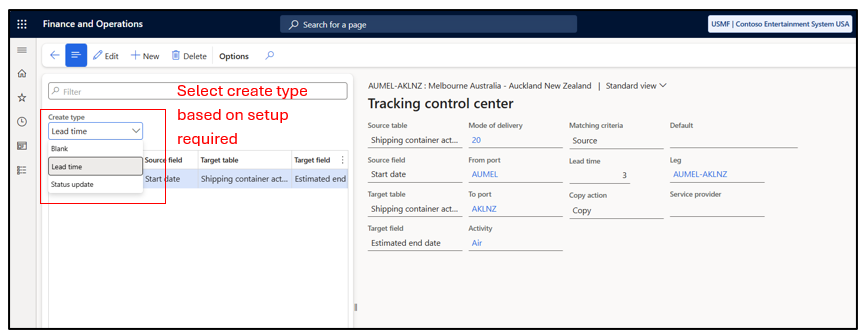
The Tracking Control Centre can be accessed through either of the following paths:
- Landed Cost –> Multi leg journey setup –> Legs, here you can define setup each leg wise
- Landed Cost –> Delivery Information Setup –> Tracking Control Center
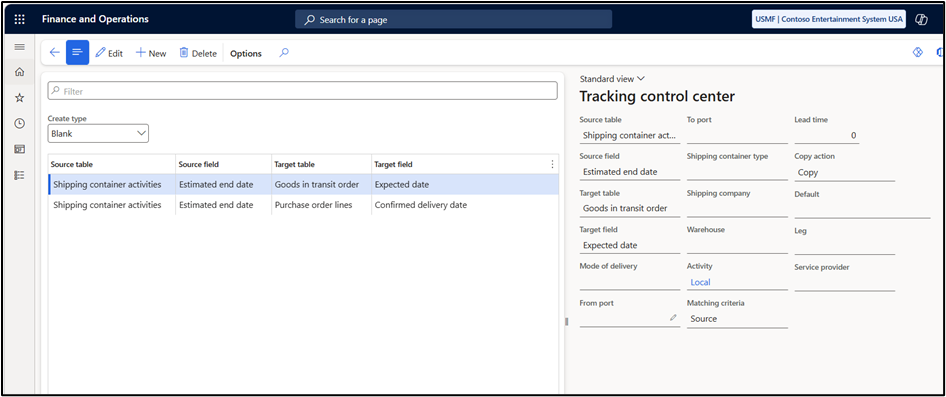
1. Create Type: BLANK
| Source Table | Source Field | Target Table | Target Field | Comment |
| Shipping Container activities | Estimated end date | Good in transit order | Expected date | This setup makes sure that expected date on GIT order is updated based on the estimated end date on the Voyage. |
| Shipping Container activities | Estimated end date | Purchase order lines | Confirmed delivery date | This setup makes sure that confirmed delivery date on purchase order line is updated based on the estimated end date on Voyage. |
Note: This is a general setup and is not specific to any leg. The setup is applicable to all voyages.
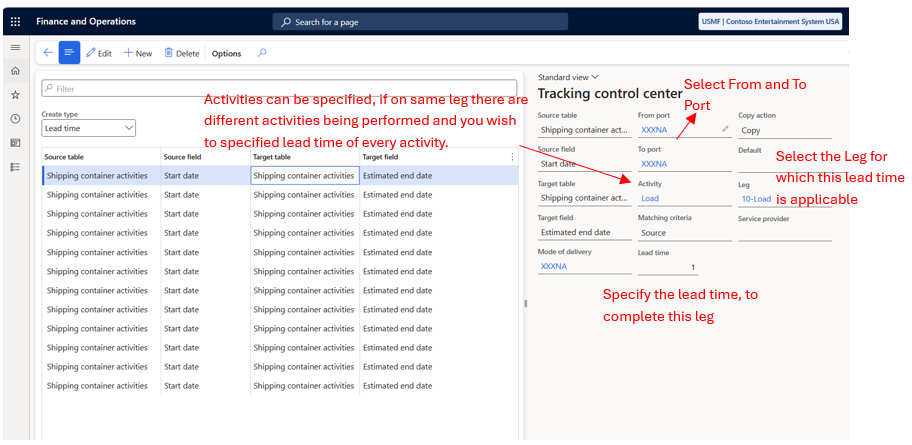
2. Create Type: Lead Time
| Source Table | Source Field | Target Table | Target Field | Comment |
| Shipping Container activities | Start Date | Shipping Container activities | Estimated end date | This setup makes sure when the start date is updated, the estimated end date is also updated, considering the lead time. |
Note: Use this setup to define lead times. Select the From Port and To Port, then choose the leg and specify the lead time required to complete that leg.
3. Create Type: Status Update
| Source Table | Source Field | Comment |
| Shipping Container activities | Actual End Date | This setup makes sure that when actual end date is updated on the Voyage for this leg, the status of the Voyage, Purchase order line is also updated. |
Note: This setup is used to define the status updates. Specify the From Port and To Port, and then select the leg. On the lines, define the status that should be updated for the respective cost area when the leg is completed.
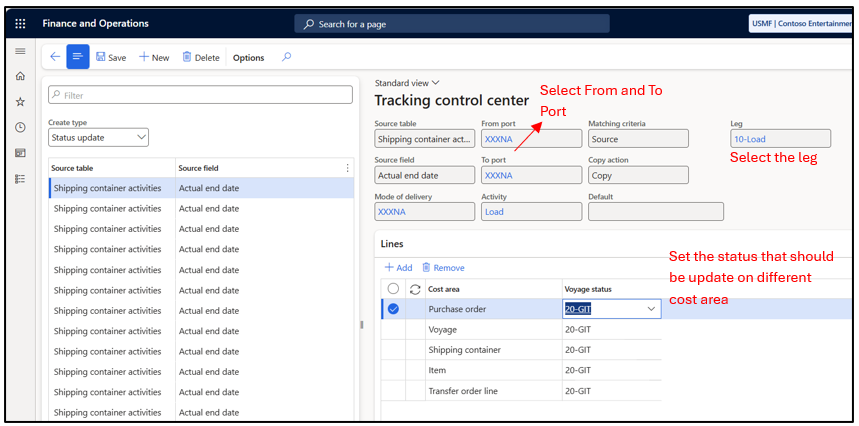
This means when the actual end date is update on the 10- Load Leg on Voyage, the status of that Voyage, Item, purchase order line will change to 20-GIT.
Hope you found this helpful.
Thankyou.