Functional Location
A Functional Location in Dynamics 365 represents physical place within an organization where assets are installed, operated, or maintained. Parent and child functional locations can also be maintained to capture a clear and structured hierarchy.
For Example: Plant → Production Area → Machine Section
Here, Plant is a parent location and represent the highest level of physical location. This can be an entire factory or a site. Production area is the child (Level1) of the Plant. Machine Section is the child (Level 2) of the production area.
Create Functional location
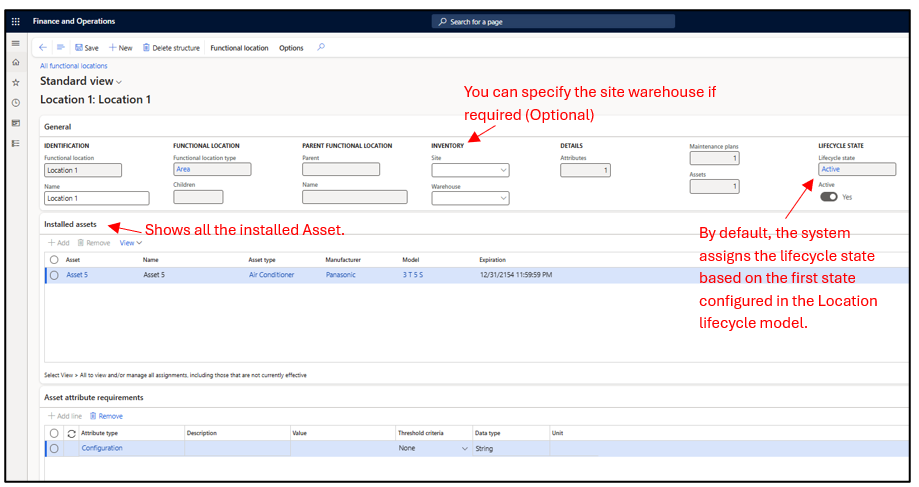
- Navigate to Asset Management –> Functional Location–> All functional location. Click on New. A side pane opens, allowing the user to create or update the record.

- Additional details on the location can be specified if required like asset attributes, maintenance plan, maintenance round etc.
- If a functional location is no longer in use, its lifecycle state can be updated from Active to Ended using Update functional location from the Action Pane on All functional location form.
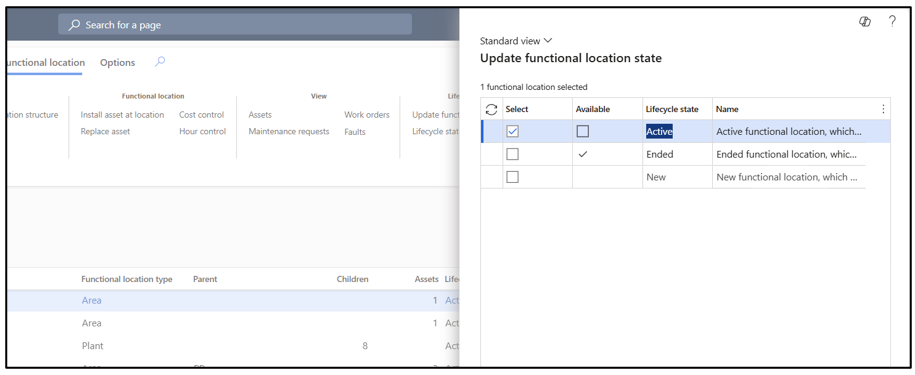
Note: Once the location lifecycle state is updated to Ended, the asset status is also updated to Scrapped, which in turn updates the Active to Date on the asset. This setup to update asset state based on the update in location lifecycle state is done on Functional locations Lifecycle state form.
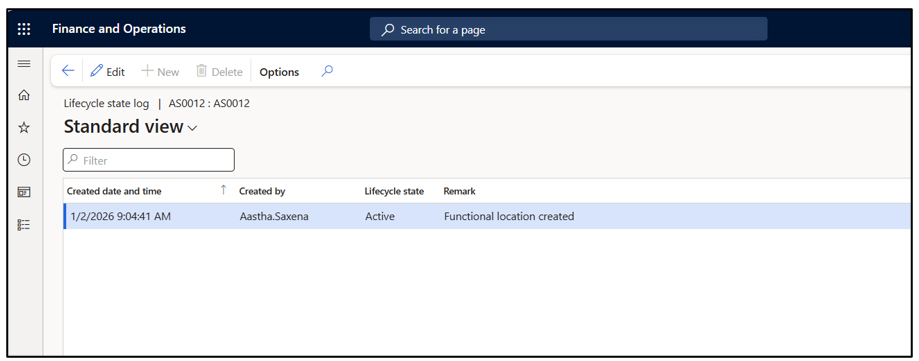
- Whenever the lifecycle state of a functional location is updated, the lifecycle state log automatically records the previous and new state, along with the user and timestamp, providing a complete audit trail.
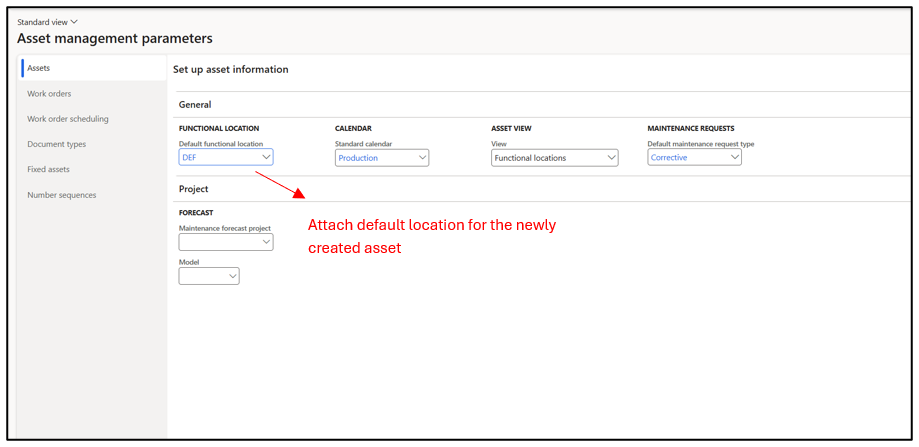
- Set a default location for every new asset created in the system.
Asset Management Parameter–> Assets–> Default functional location
Assets
Asset is any physical item that an organization manages in Dynamics 365 to ensure proper it’s maintenance, cost tracking, and operational efficiency.
Create Assets
- Set up number sequence if you want to follow a desired sequence for assets number. In case you want to manually fill in the number you can skip it or make the number sequence as manual.
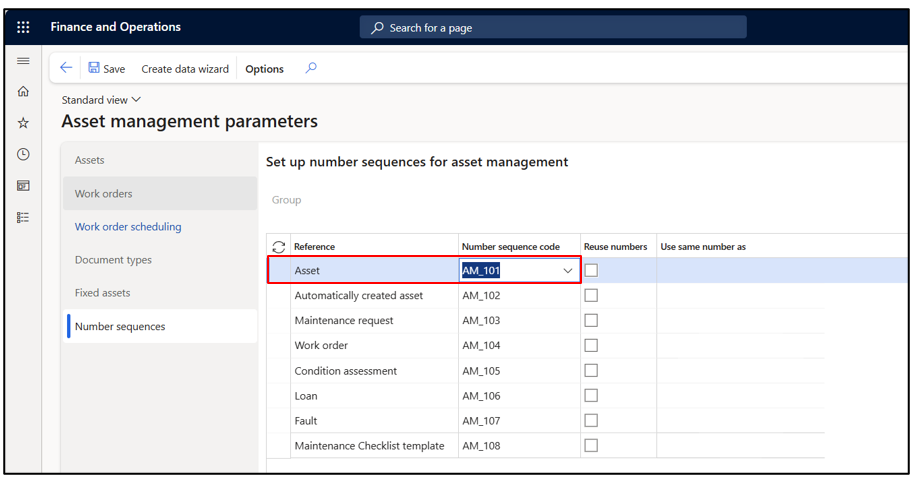
- Navigate to Asset Management–> Assets–> Assets. A side pane opens, allowing the user to create or update the record.
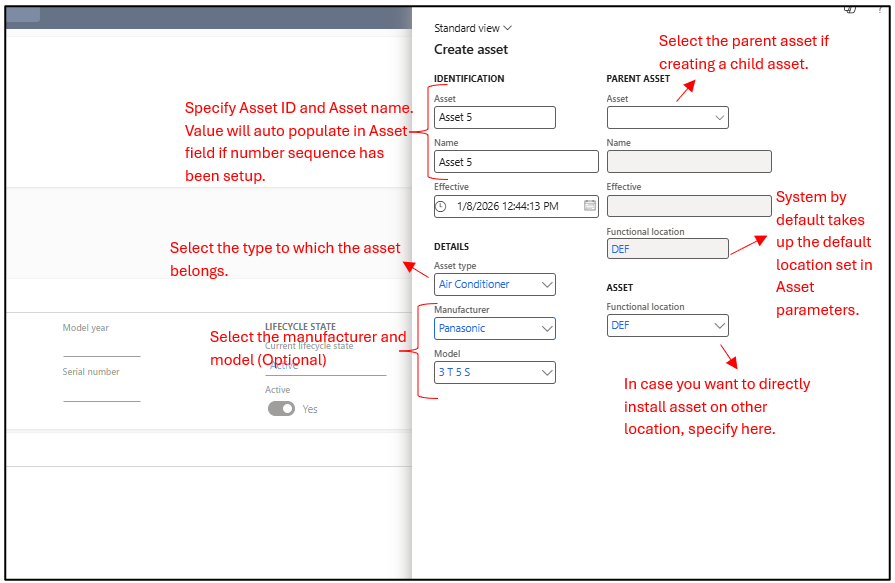
Note: Manufacturer and Model have to be created initially in the respective master. Navigate to Asset Management–> Setup–>Asset–>Manufacturer and model. In case specific manufacturer and models are linked to the asset type, only those would be visible otherwise all the manufacturer and model would be visible in the drop down.
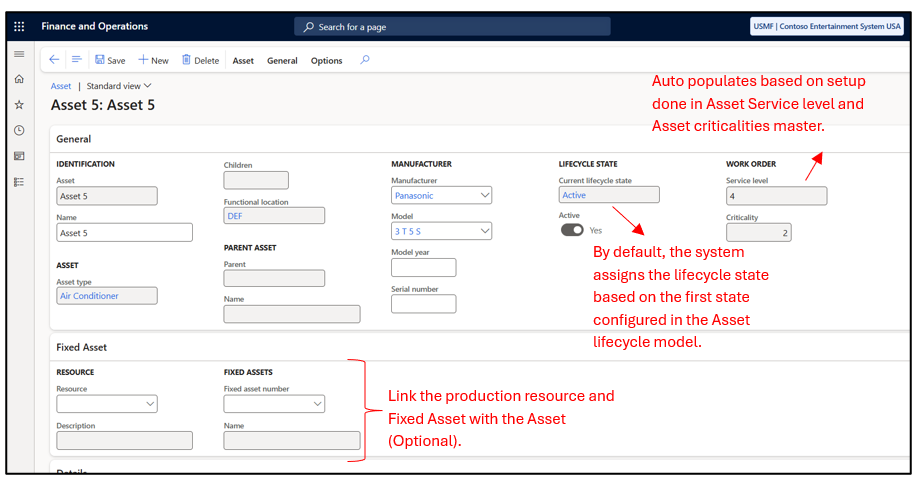
- Additional details can be specified on the Asset master as required. The Resource field can be linked to enable capacity planning when the asset is under maintenance, while the Fixed asset field can be associated giving a view related to maintenance cost on Fixed asset master.
- The user has the option to capture vendor detail, asset attributes, Active from and To Date.
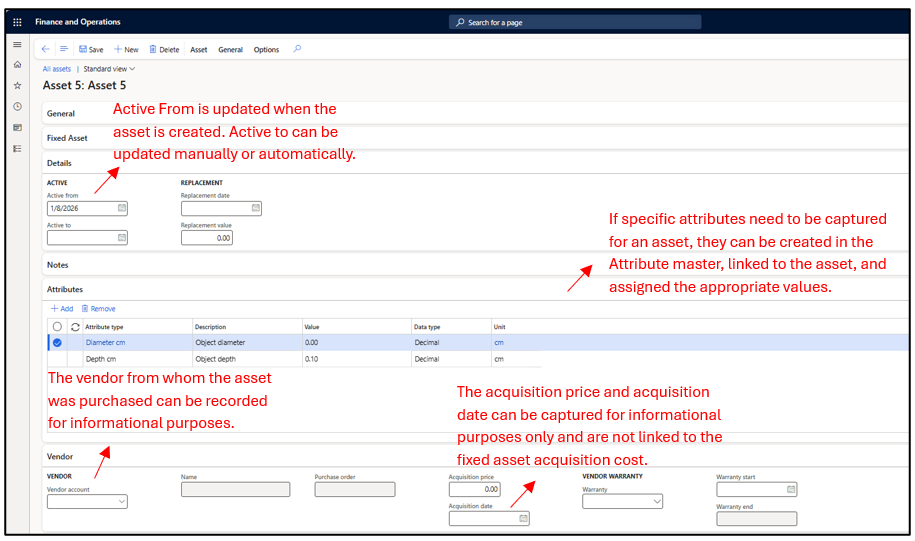
Note: The ‘Active To’ date may be updated either manually or automatically. If the lifecycle state of the asset or its installed location is changed to Inactive, the system updates the ‘Active To’ date accordingly.
- If an asset is no longer in use, its lifecycle state can be updated from Active to Scrapped using Update Asset State from the Action Pane on All assets form.
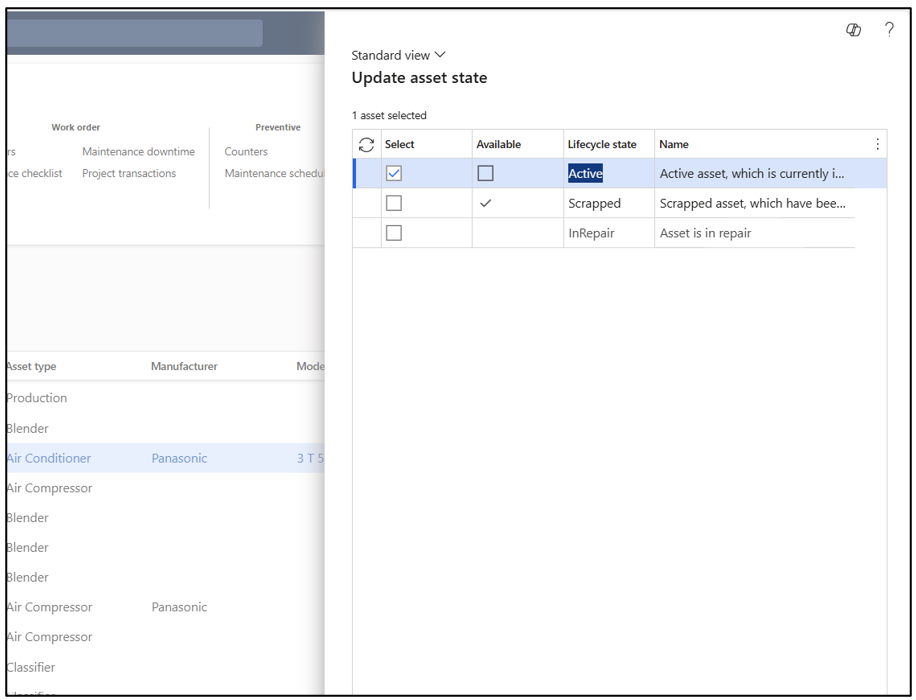
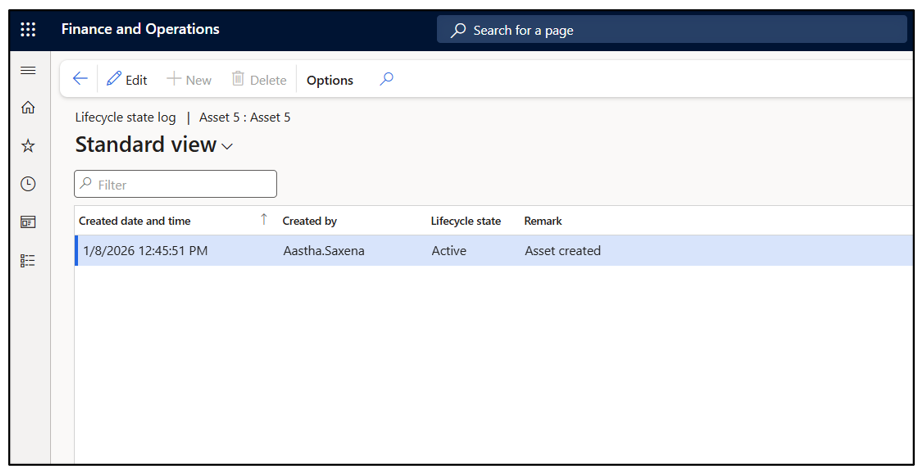
- Whenever the lifecycle state of the asset is updated, the lifecycle state log automatically records the previous and new state, along with the user and timestamp, providing a complete audit trail.
Asset creation through Purchase Order
Assets can also be created using a purchase order reference. This is useful when an asset is purchased through a purchase order and you want to create the asset from that PO while keeping the purchase order details on the asset record.
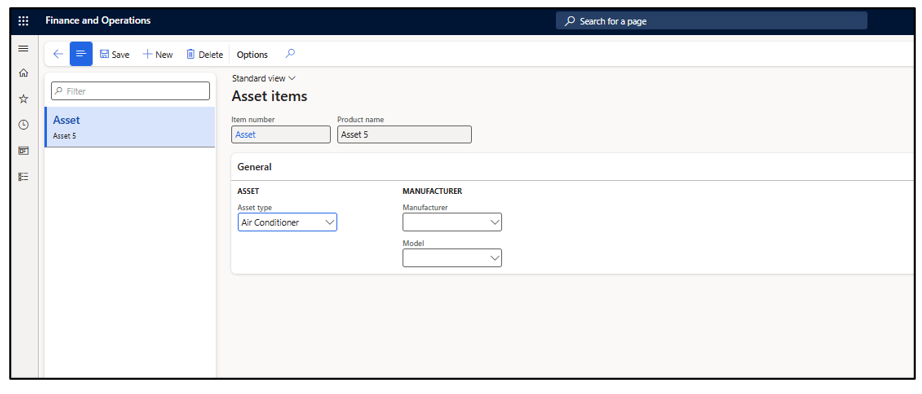
- Navigate to Asset management > Setup > Assets > Items. Specify the item against which the Purchase order would be raised and link this with an asset type.
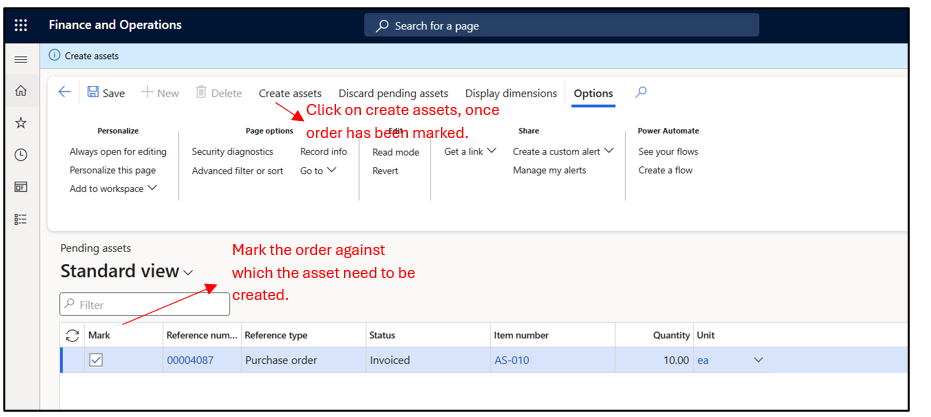
- Navigate to Asset management > Assets > Pending Assets. Here, you can see a list of all purchase orders created for the item specified in the Asset Item form. Select the required purchase order and click Create Asset. The system then displays a notification prompting the asset number for the newly created asset. The vendor and purchase details are automatically stored in the asset master.
Hope you found this helpful.
Thankyou.