Scenario: This blog covers the Ex Works (EXW) Incoterm scenario, where the buyer is responsible for the shipment and transportation costs once the goods leave the seller’s premises. The seller’s responsibility ends at their location.In such cases, the vendor invoice may need to be settled before the goods are received. Using the Goods in Transit functionality in Microsoft Dynamics 365 Landed Cost, the purchase order can be invoiced before the product receipt is completed.
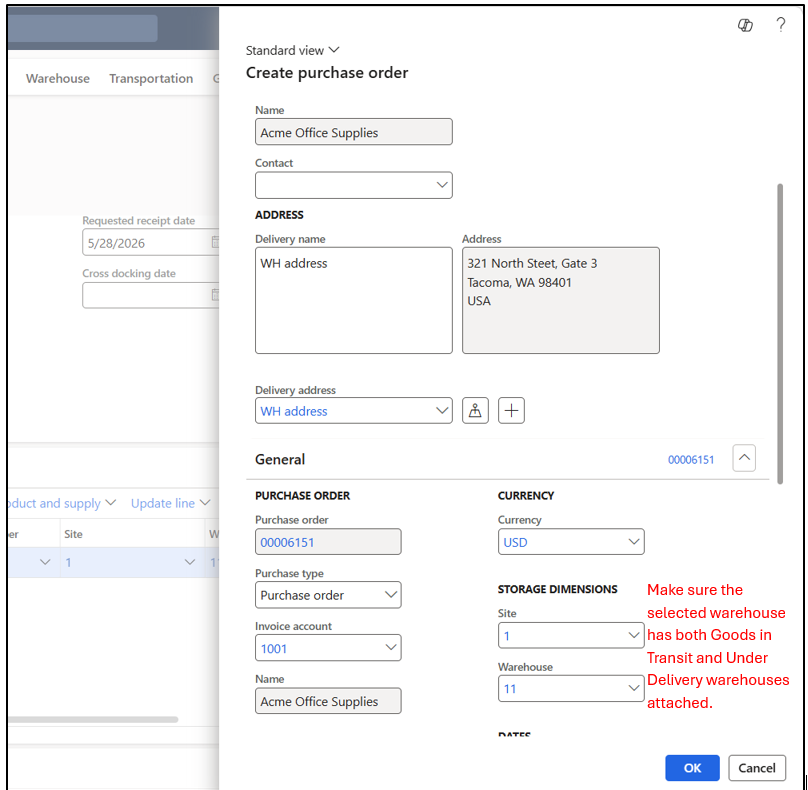
1) Create a purchase order and specify item, quantity and price.
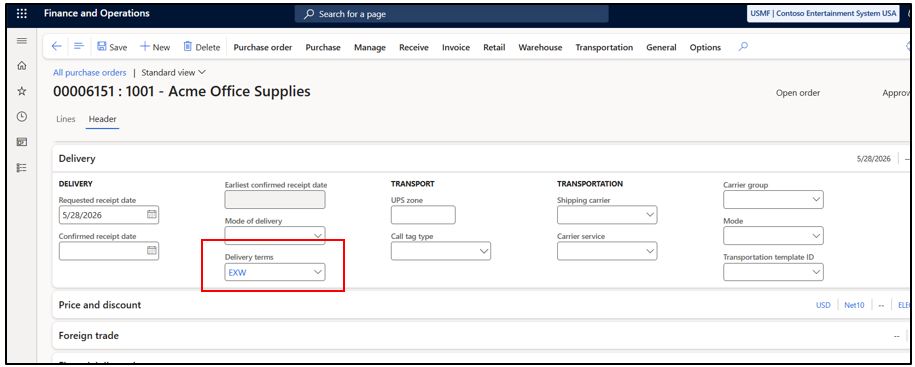
2) Make sure the Terms of Delivery is specified on the purchase order and the Goods in Transit checkbox is enabled on the Terms of Delivery master to track goods during transit. Confirm the purchase order.
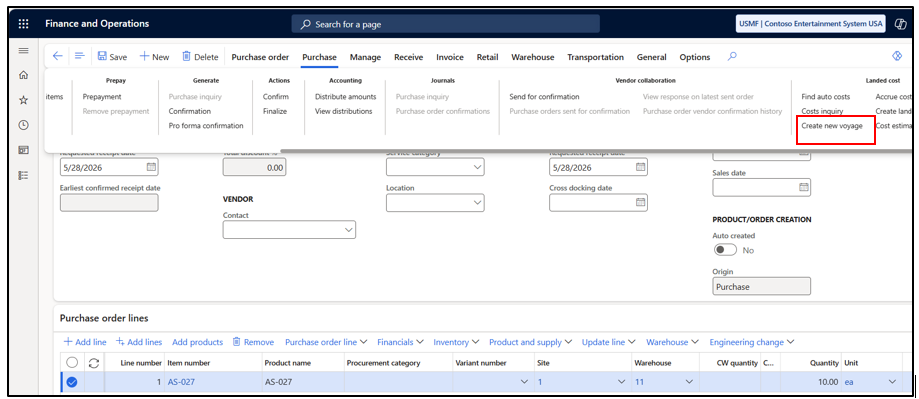
3) Creation of Voyage : Consider Voyage as a shipment. It is used to track container details, shipment stages, and the movement of goods during transit.
You can create Voyage through following ways:
Purchase Order->Purchase(Action Pane)–>Create New Voyage
or,
Landed Cost –> Voyages–> All Voyages
4) Specify the necessary details and click on OK.
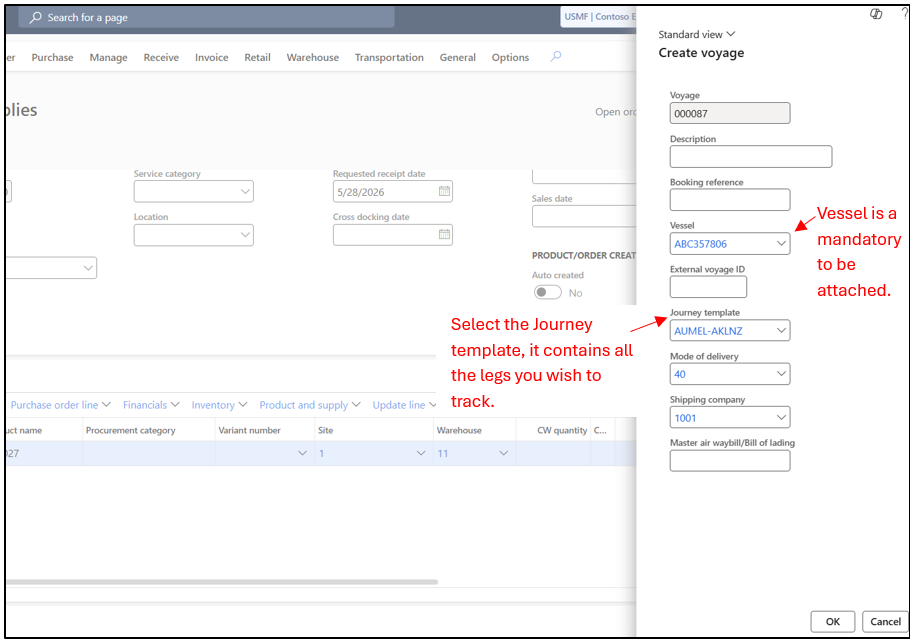
Note: On the Vendor Master, in miscellaneous details tab, specify Shipping type as Shipping company. This would make sure that vendor will be visible in the Shipping company drop down for selection.
5) Voyage Editor is used to select the order line that you wish to consider in the Voyage. It can contain order lines related to multiple purchase order as well. For example: You placed two purchase order with one vendor and items from both the orders are coming in a single shipment.
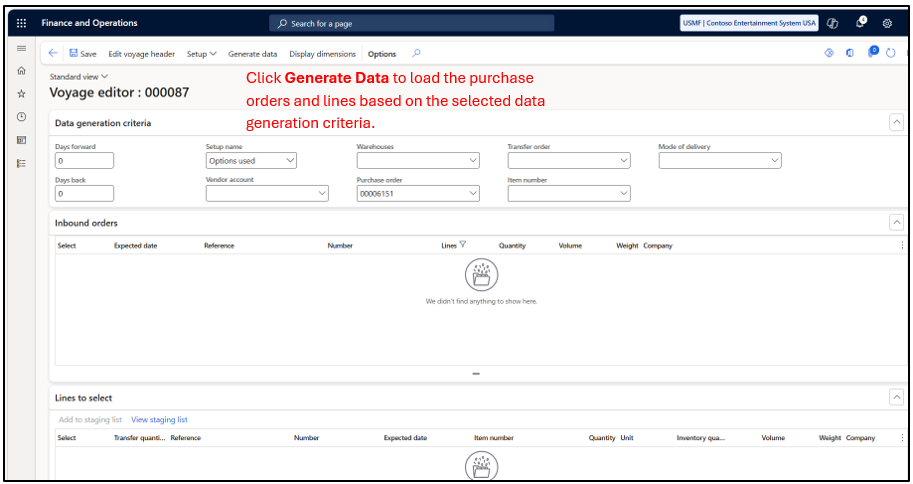
6) Once the data is generated, select the lines and click on Add to Staging List. Staging list is basically a list of item you are considering for shipment.
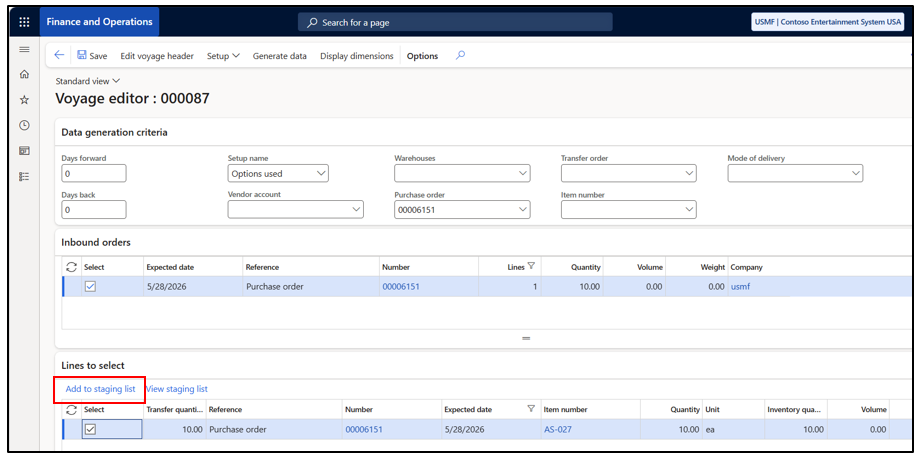
7) Click on View Staging List.
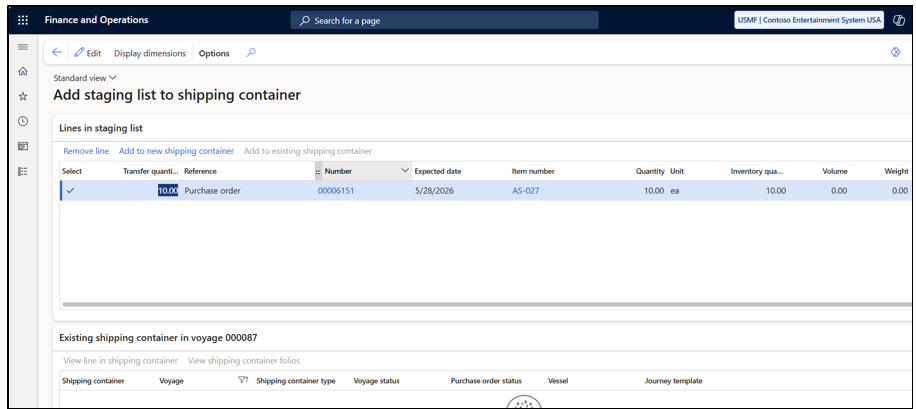
8) Click on Add to New Shipping container. Here, we are basically adding the item in the staging list to different containers.
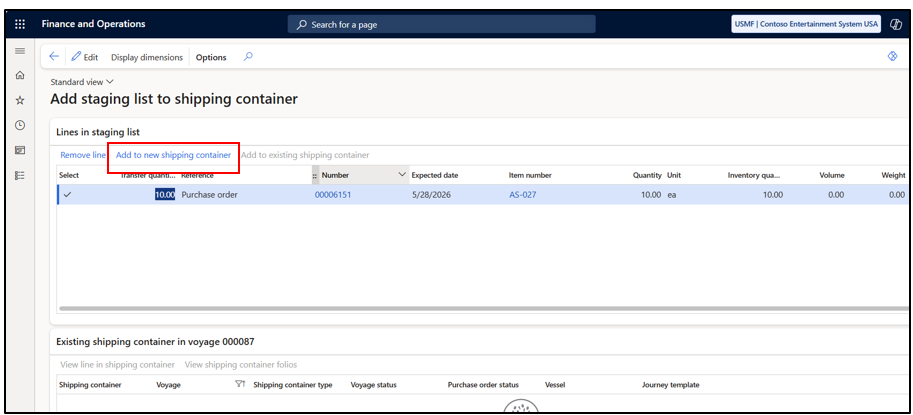
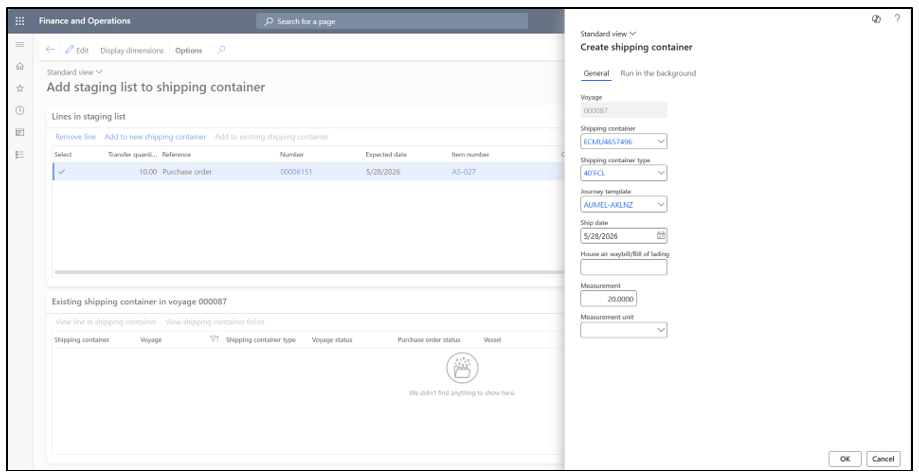
9) Select the container details and journey template. Click on OK.
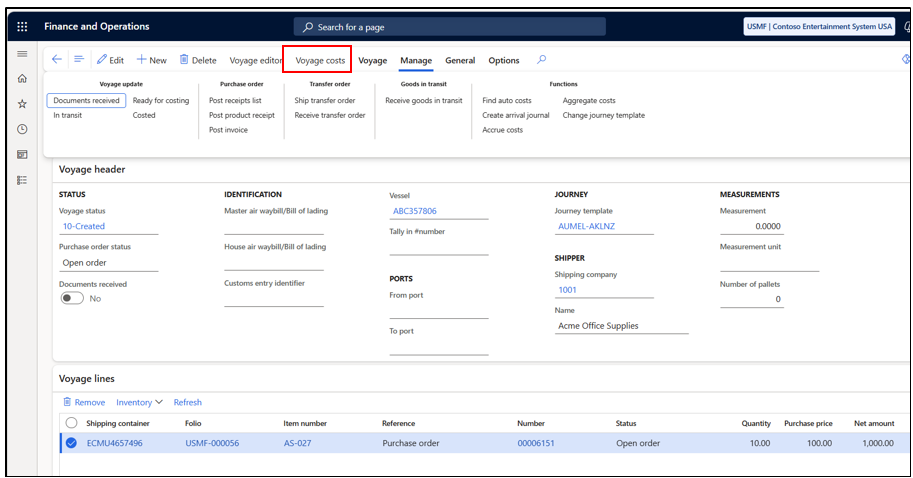
10) Voyage has been created. Click on Voyage cost.
11) You can add costs related to the voyage here. Auto costs can also be configured based on specific criteria, and they will automatically populate if the voyage meets those conditions.
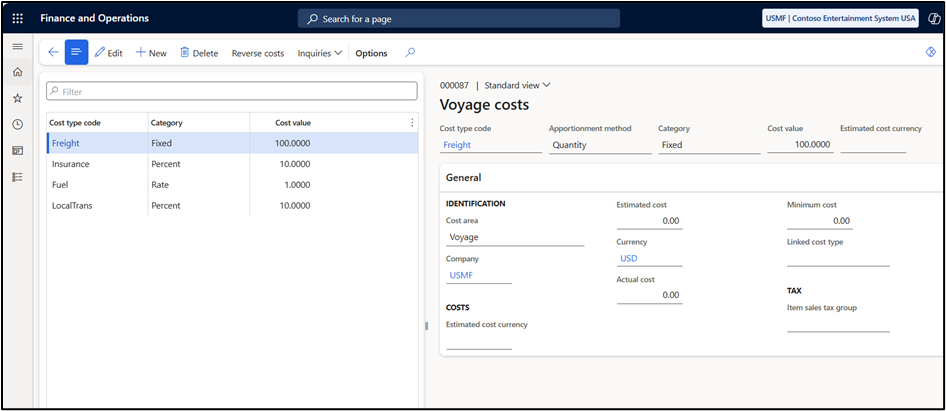
Note: When the purchase order invoice is posted, the system records the estimated cost in a landed cost clearing account. Once the actual invoice is received from the shipping company and posted in the system against the voyage cost, the system updates the actual cost on the voyage.
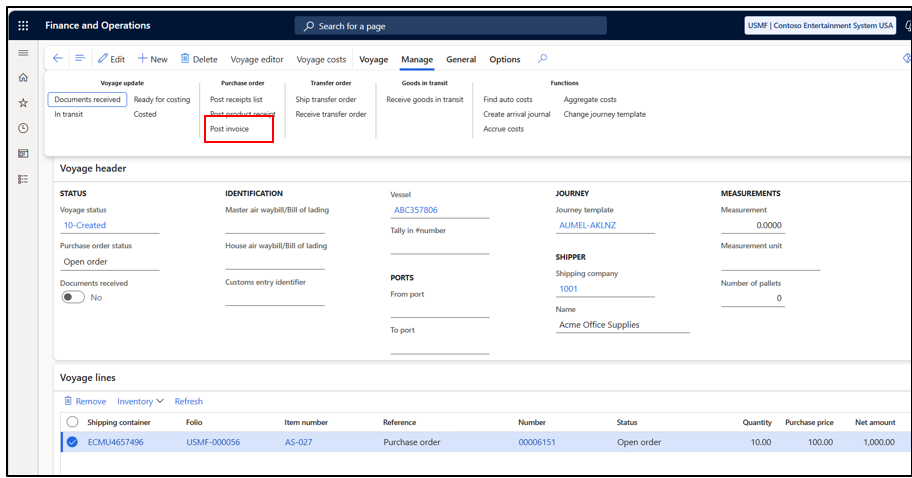
12)Click on Post Invoice.
12) Specify the necessary detail and post the invoice.
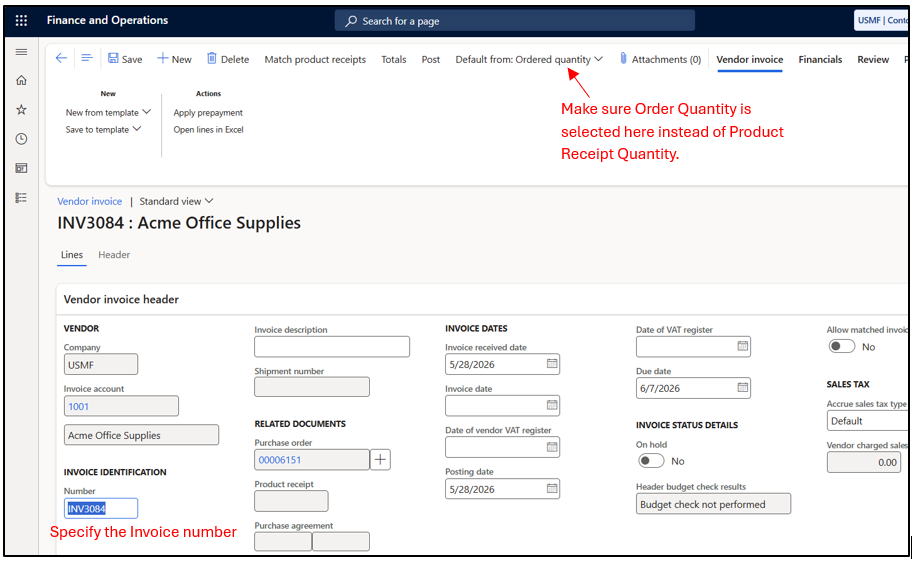
Note: If the matching principle is enabled for invoicing, just click Update Match Status. Avoid clicking Match Product Receipt, as the validation will fail because the product receipt has not yet been completed.
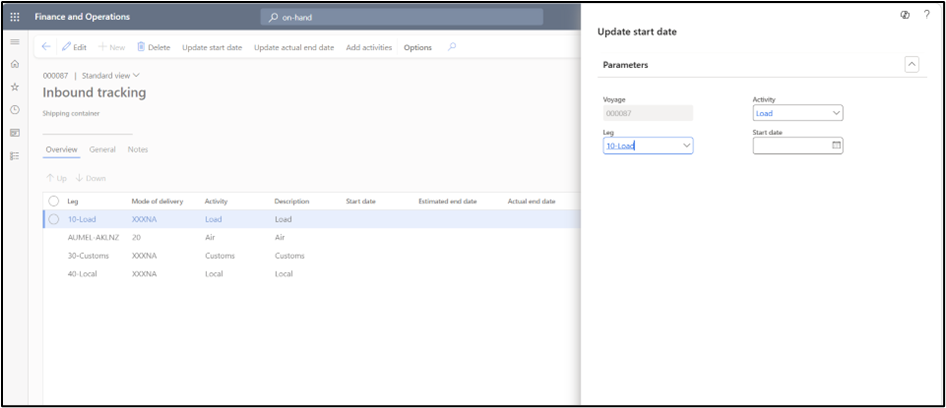
13) On the Voyage, Go to General Tab–> Tracking.
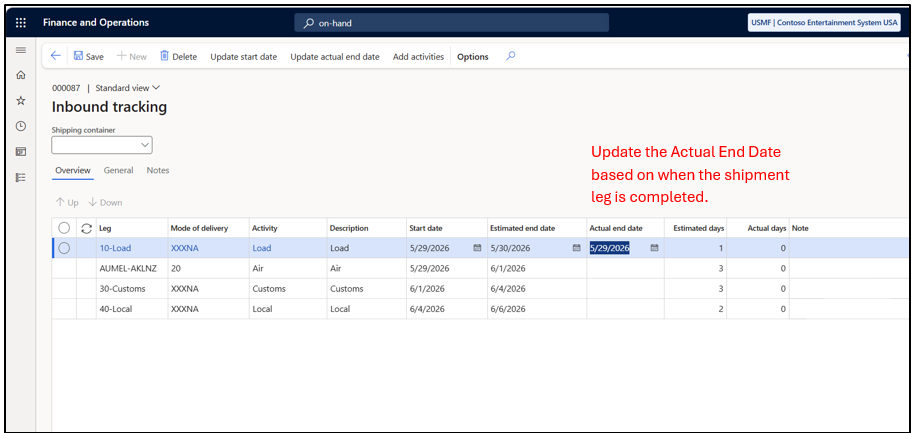
This form is used to track the stages of the journey and update the actual completion date for each leg of the shipment. Select the leg and click on Update start date.
14) Based on the start date selected above, the start date and estimated end date are automatically populated for the legs below if the lead time has been set up on the legs.
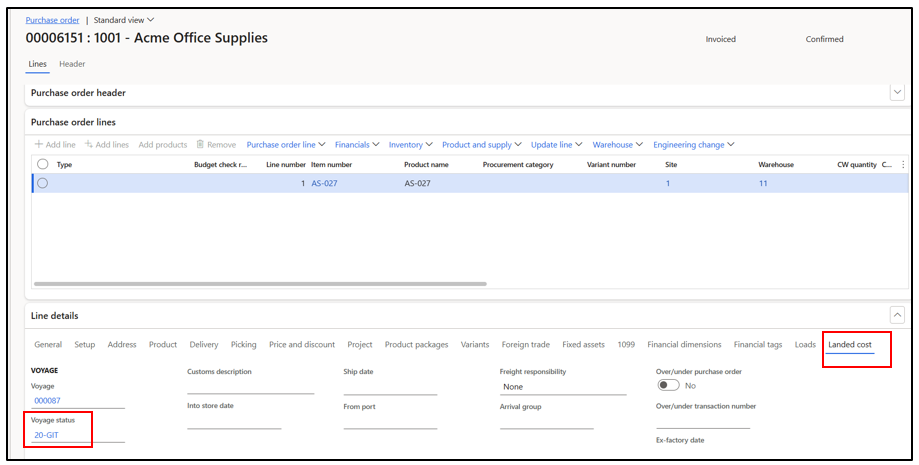
15) Once the actual date is updated for any leg, the status of the voyage, purchase order changes based on the setup. On the purchase order, go to landed cost tab in Line Details. Check the status update.
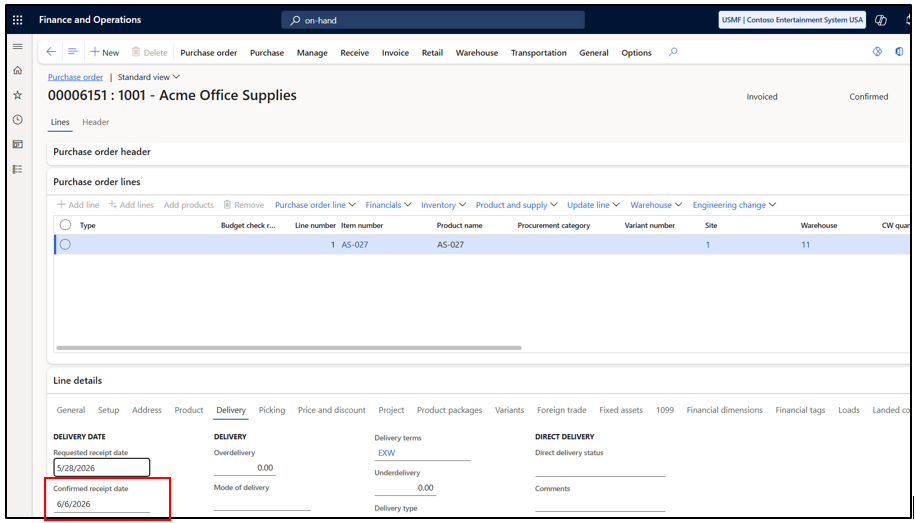
16) The confirmed receipt date on the purchase order is also updated based on the estimated end date captured in the Voyage tracking.
17) Go to the Voyage form and receive the goods.
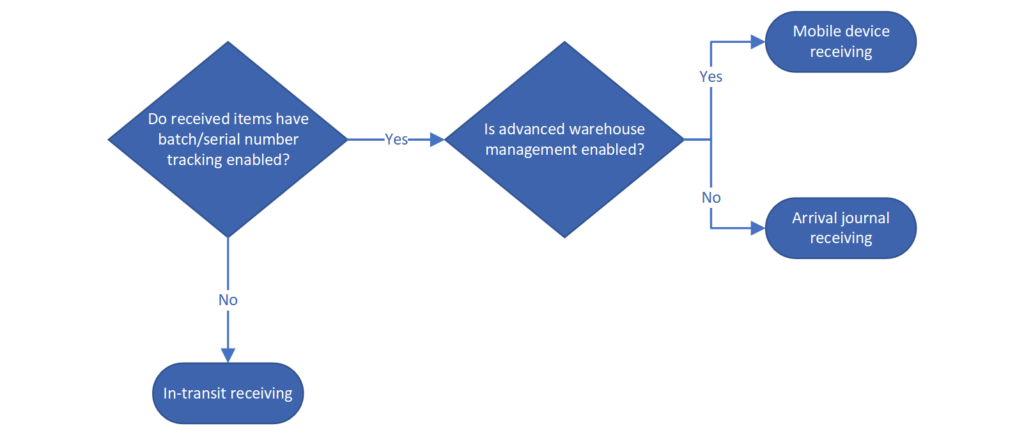
There are two ways to perform receiving for goods in transit.
18) Click on Create Item Arrival Journal
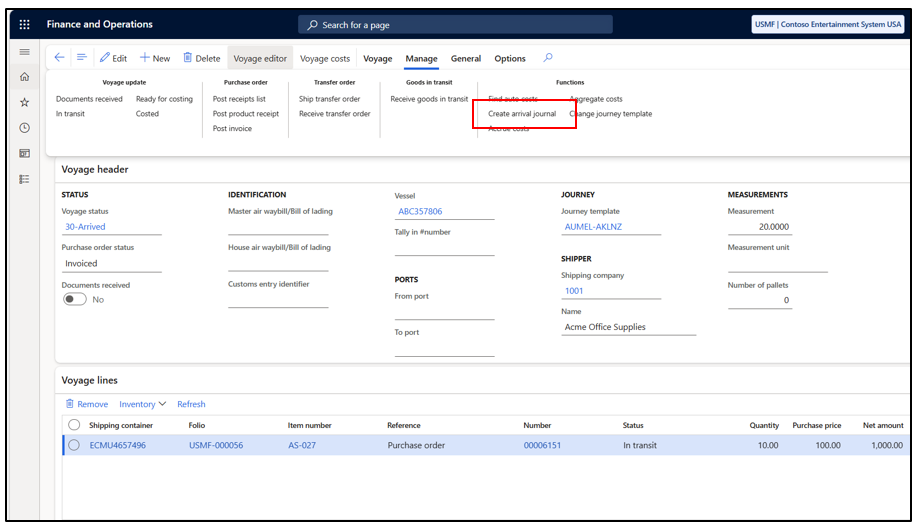
Note : Attach item arrival journal in Landed Cost Parameters-> General-> Defaults.
19) Enable the check box and click on ok.
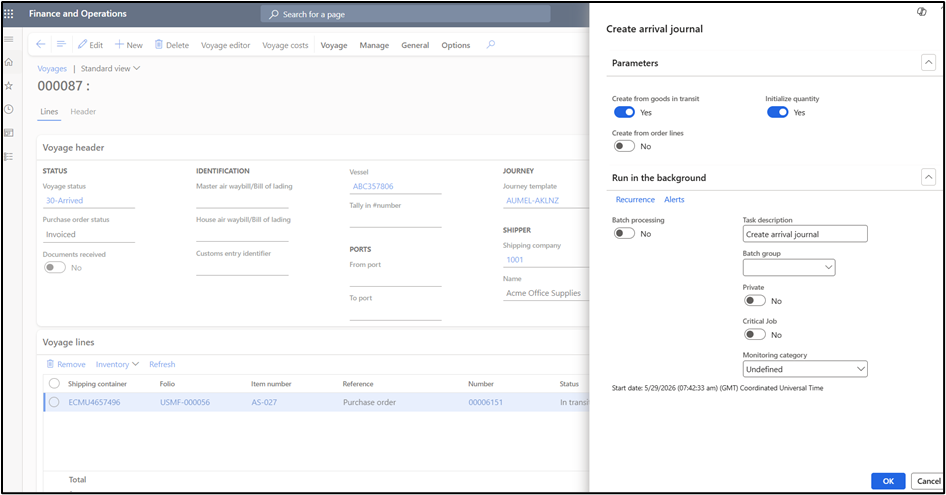
20) Post the Item Arrival.
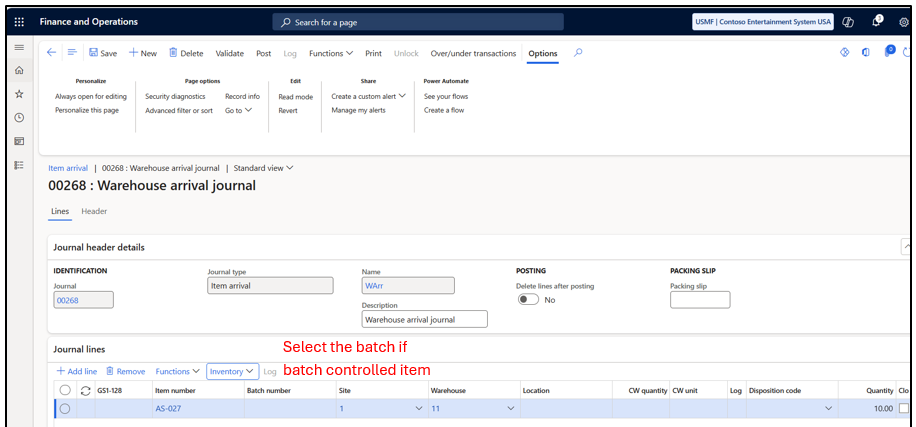
21) Create a invoice journal to record the shipping company invoice and specify the actual amount due for payment.
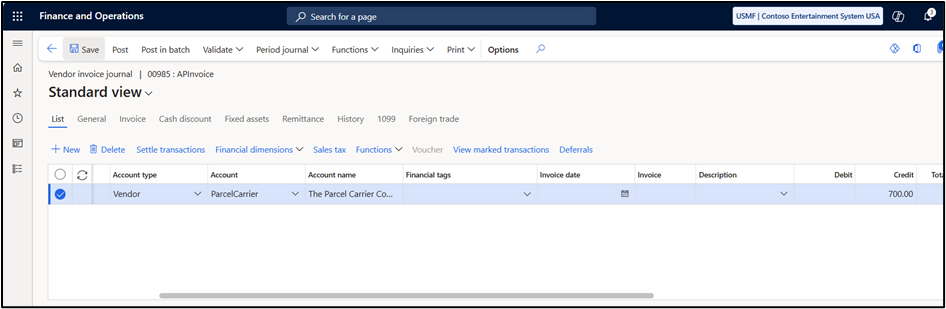
22) Go to Functions and click on Voyage Cost.
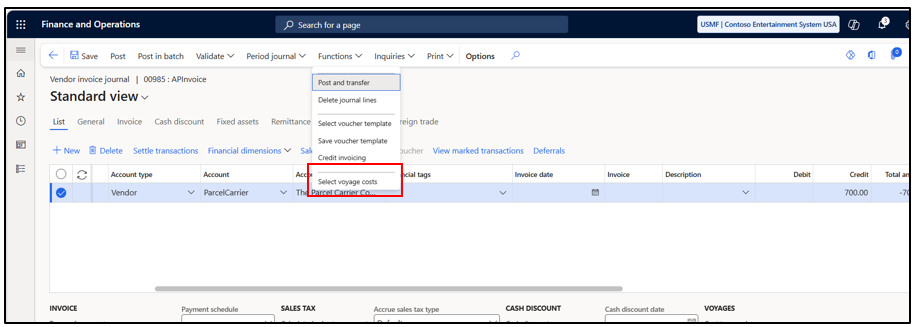
23) Select the voyage. We are linking the invoice to the relevant voyage cost so that actual expense can be adjusted against the estimated.
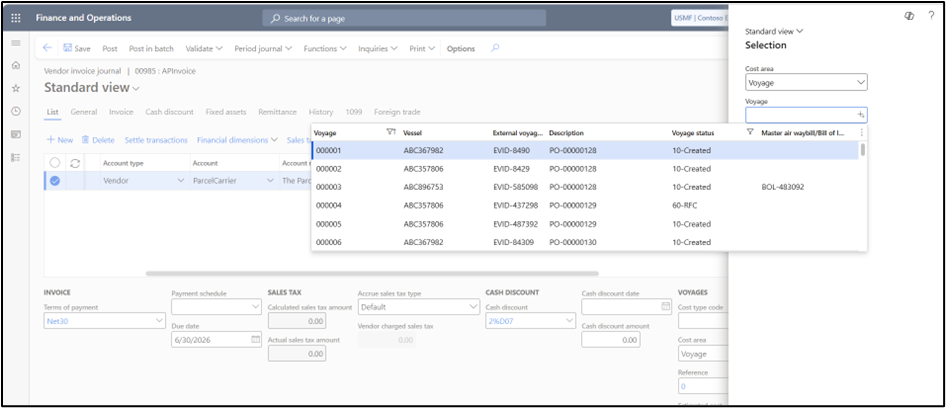
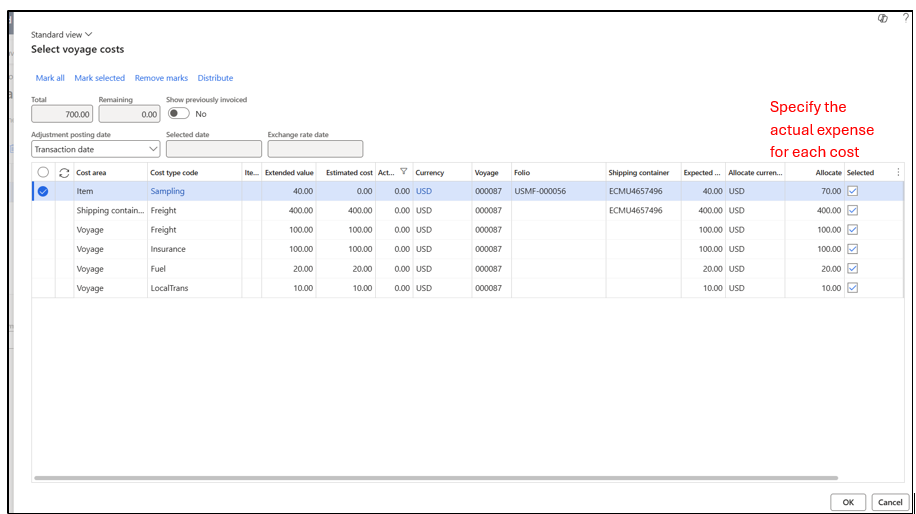
24) Allocate the cost and click on ok. Post the Invoice.
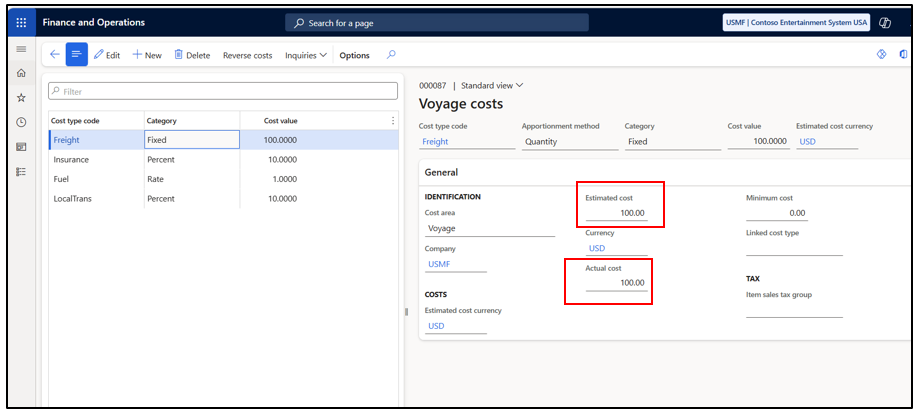
25) Check the Voyage costs. Actual cost is updated on the voyage cost.
Hope you found this helpful.
Thankyou.
؟
very good
Thankyou.