Scenario: It is not necessary that the exact quantity specified on a purchase order is always received in the warehouse and since the original purchase order has already been invoiced it can’t be modified either. To cater to this scenario, Landed Cost provides the functionality of Over/Under transactions. We can handle these transactions manually or we can set rules for tolerance limit, based on which system can trigger a automatic action in some cases.
Example :Purchase order created and invoiced for 1,000 units, the good in transit order has 1000 units but only 500 units are received during the receiving process. The remaining 500 units may have been damaged in transit, lost during shipment, or has to be a returned to the vendor.
SETUP
1) Over/Under reasons : You can define over-delivery and under-delivery reasons in this setup. When an over-delivery or under-delivery transaction occurs during the receiving process, the appropriate reason can be selected and recorded against the transaction
Landed cost -> Over/under setup -> Over/under reasons
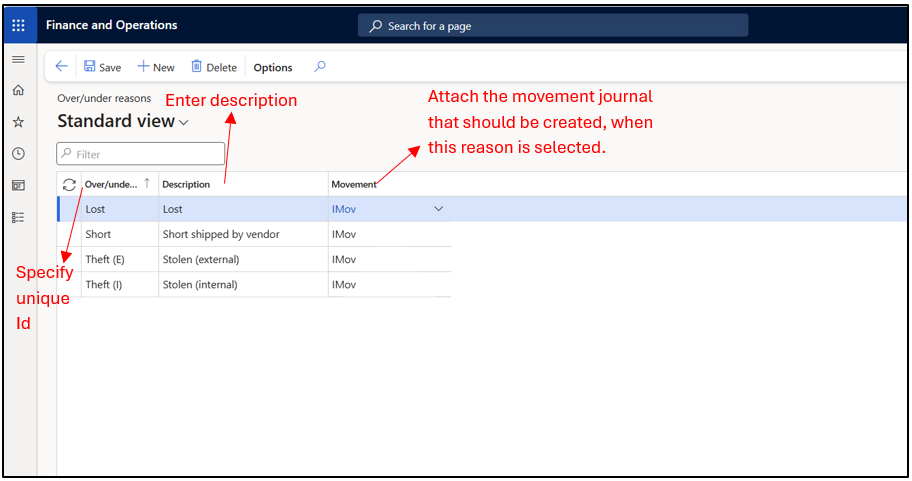
2) Item over/under tolerance group Items that have similar tolerances can be grouped together. This group is then used to define the tolerance and is attached on the released product form with the item.
Landed cost -> Over/Under Setup -> Item over/under tolerance groups
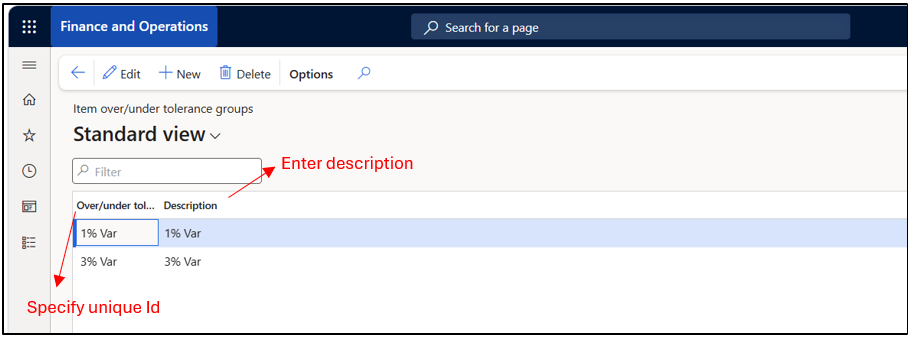
Note : This group is attached on Released Products ->Purchase Tab -> Over/Under Tolerance group
3) Vendor over/under tolerance groups Vendors who consistently deliver quantities above or below the ordered amount can be grouped together, allowing specific over-delivery and under-delivery tolerances to be defined for each group.
Landed cost -> Over/under setup -> Vendor over/under tolerance groups.
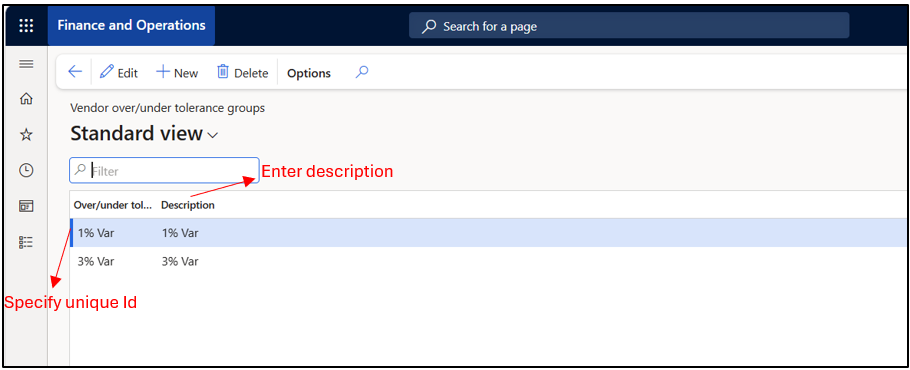
Note: Attach this group on the All Vendors form, All Vendor -> Miscellaneous Tab ->Over/Under Tolerance group
4) Over/Under tolerances : Tolerance limits can be specified here for individual vendor, item, group of vendor and item. By setting up the over/under transaction policies, you enable the system to determine how it should manage the over-processing and under-processing of goods at the time of receipt. In some cases, an over/under transaction triggers an automatic action.
If these policies are not set, the over/under transaction can be handled by manually creating a movement journal or purchase order.
Landed cost > Over/under setup > Over/under tolerances.
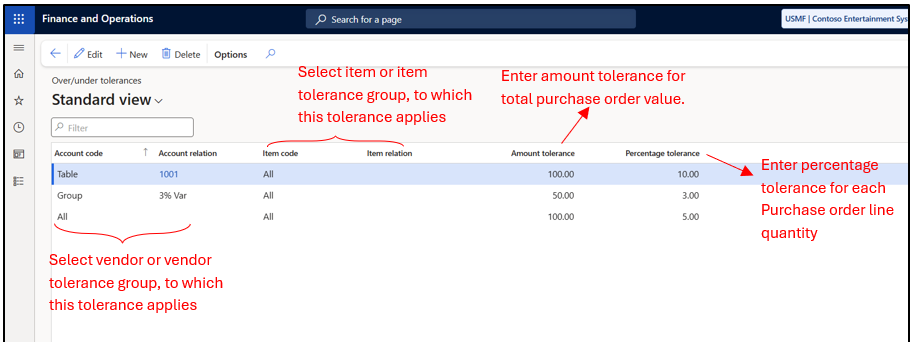
Note : The system will first check whether the total amount of the received purchase order falls within the amount tolerance. If it does, the system will then check the percentage tolerance to manage over/under delivery scenarios.
5) Landed Cost Parameters
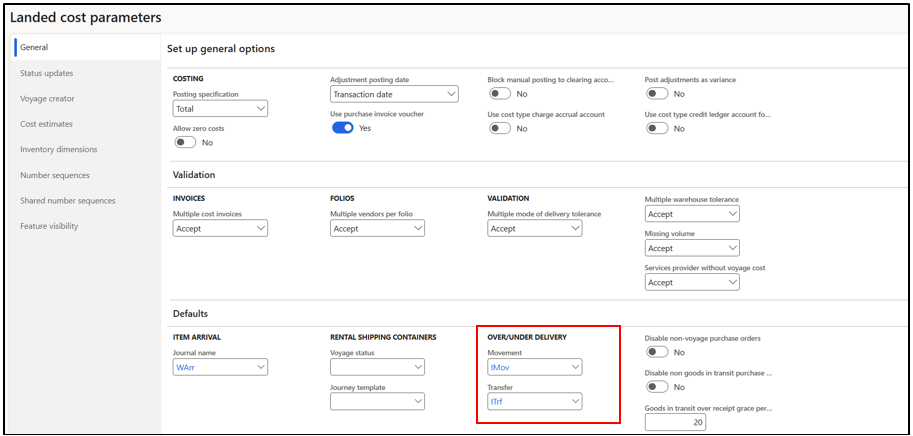
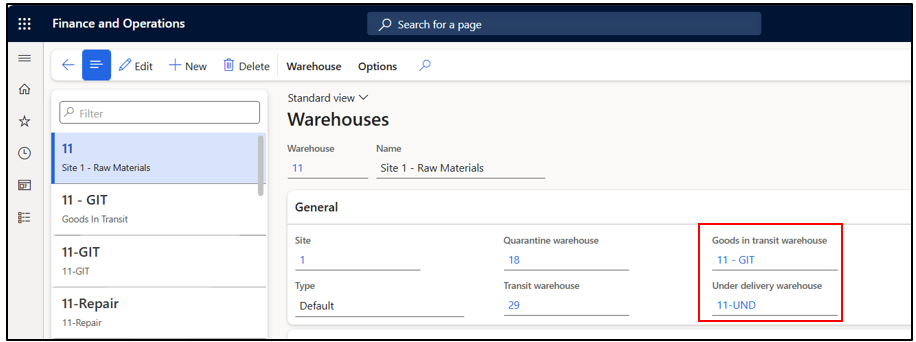
Transfer Journal: When goods are in transit, a GIT order is created. In case only partial quantity out of GIT quantity is received, and the remaining quantity is marked as closed for receipt, the system automatically generates a Transfer Journal. This journal transfers the outstanding Goods in Transit (GIT) quantity to the designated Under-delivery warehouse.
Movement Journal: When the received quantity falls within the configured over-delivery or under-delivery tolerance limits, the system can automatically process the remaining variance by creating a Movement Journal. Ensure that the appropriate offset account is configured for the movement journal before using this functionality.
Landed Cost -> Setup -> Landed Cost Parameter-> General
6) Warehouses : Make sure the following warehouses are attached on Warehouses
Inventory Management-> Setup -> Inventory Breakdown -> Warehouses
Over/Under Transaction Process Flow
The following diagram shows a flowchart of the process that the system uses to determine whether over/under transactions should be created.
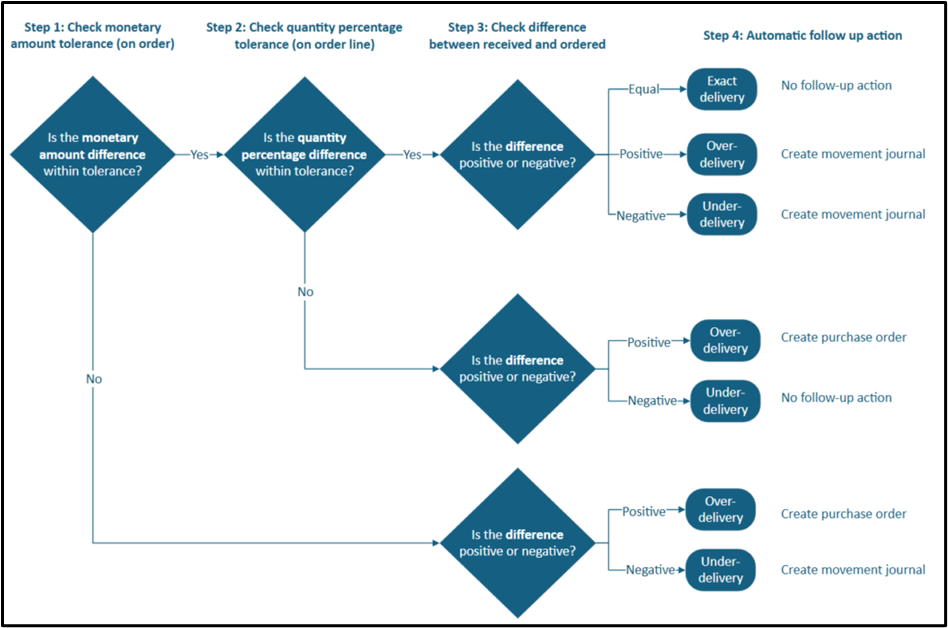
Source: Over and Under transaction, Microsoft Learn.
Process Steps
1) Create a Purchase Order and specify all the necessary details(Item, quantity, price and delivery term). Confirm the purchase order.
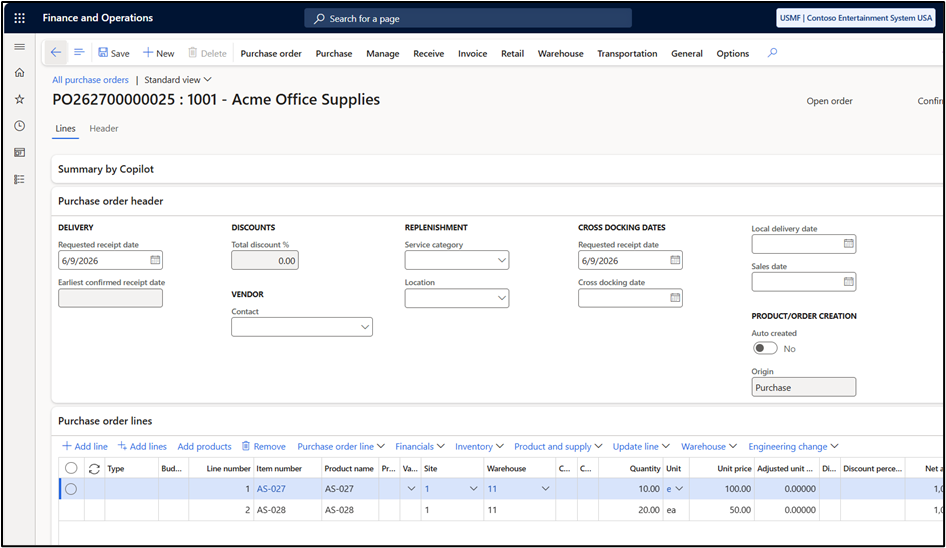
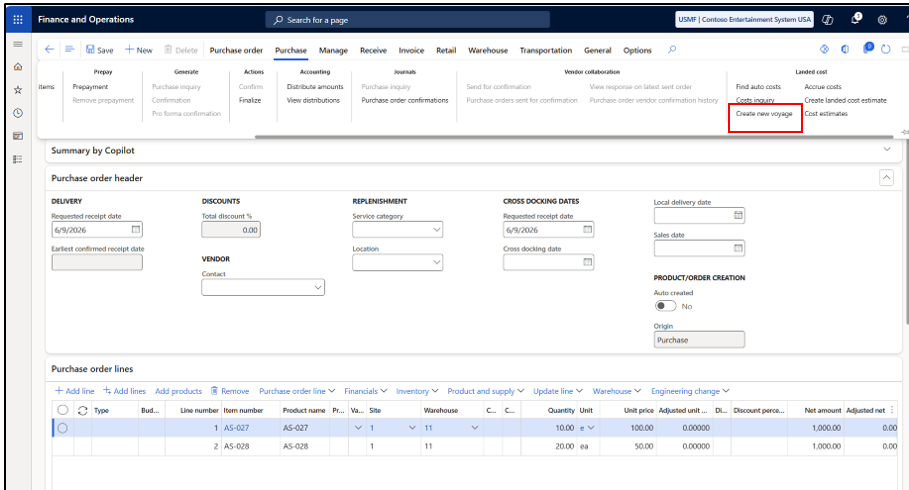
2) Create a new voyage.
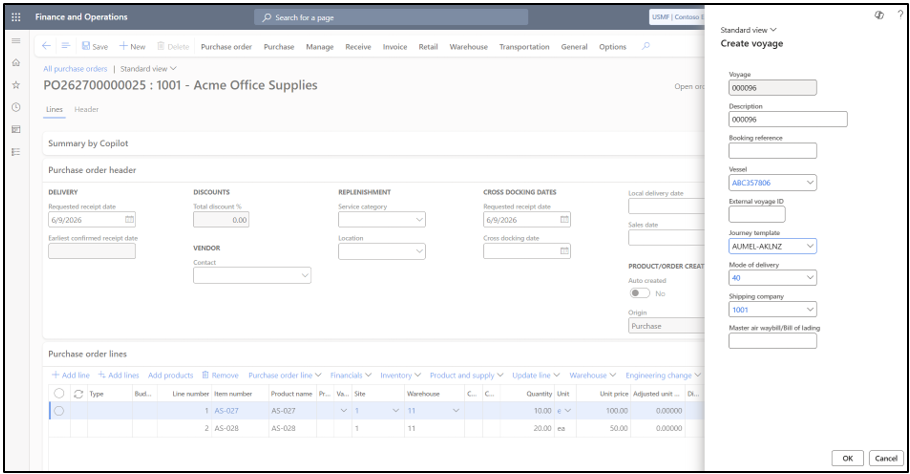
3) Specify vessel and journey template.
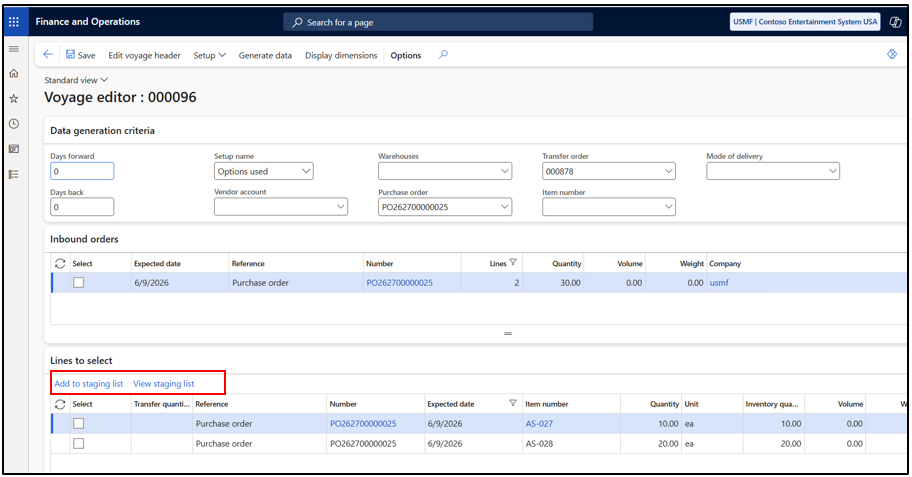
4) Generate data in the Voyage Editor. Select line and click on Add to Staging List. Once this is done, click on View Staging list.
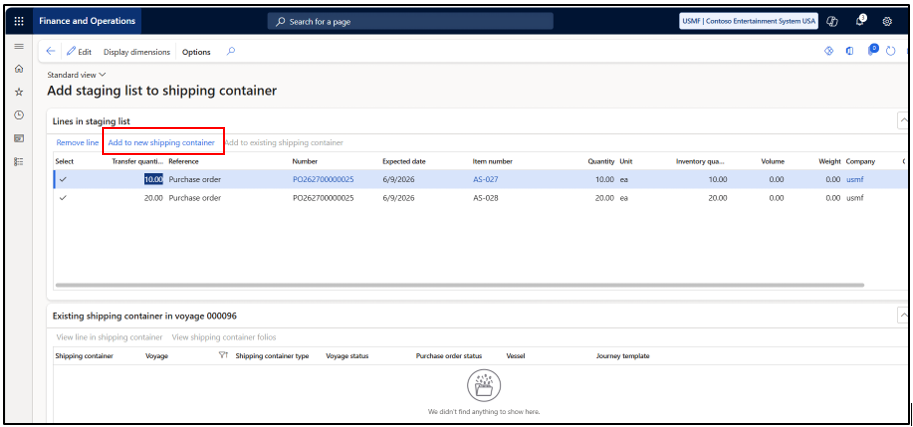
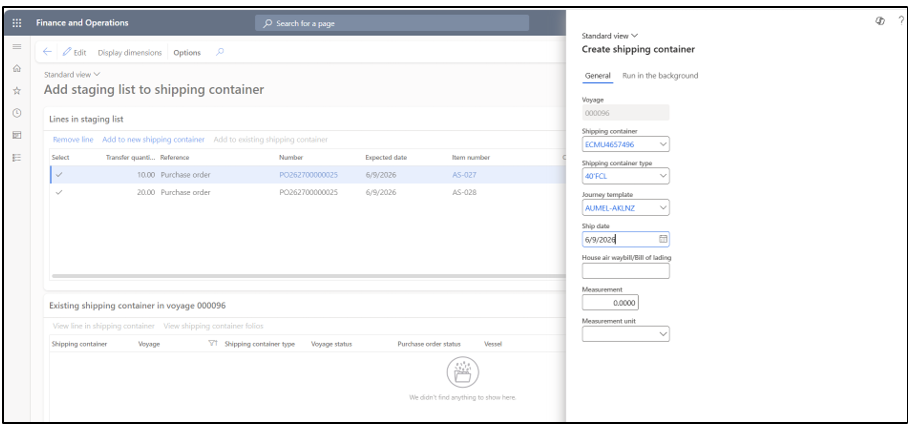
5) Click on Add to new shipping container.
6) Specify container details and click on Ok.
7) The voyage has been created. From the Voyage form, post the invoice.
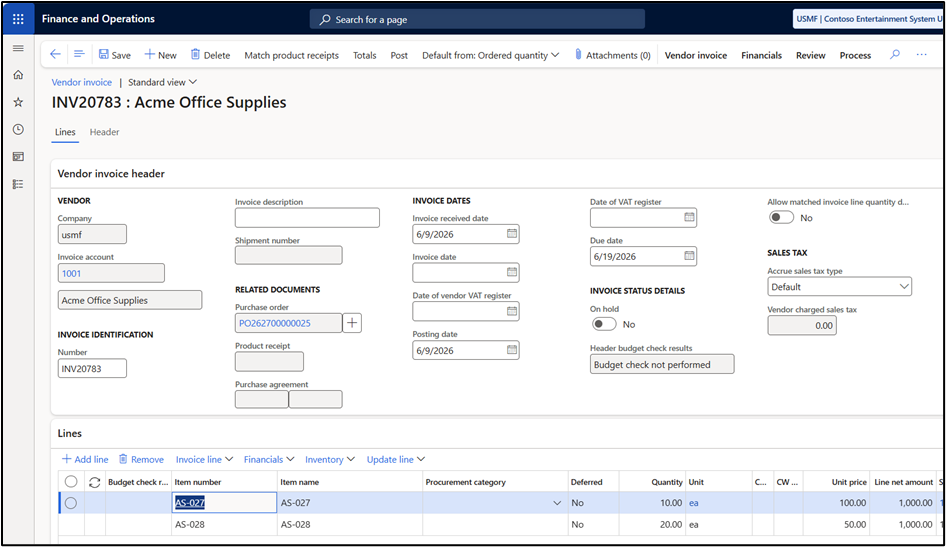
Note: Invoicing has been performed for all the PO quantity.
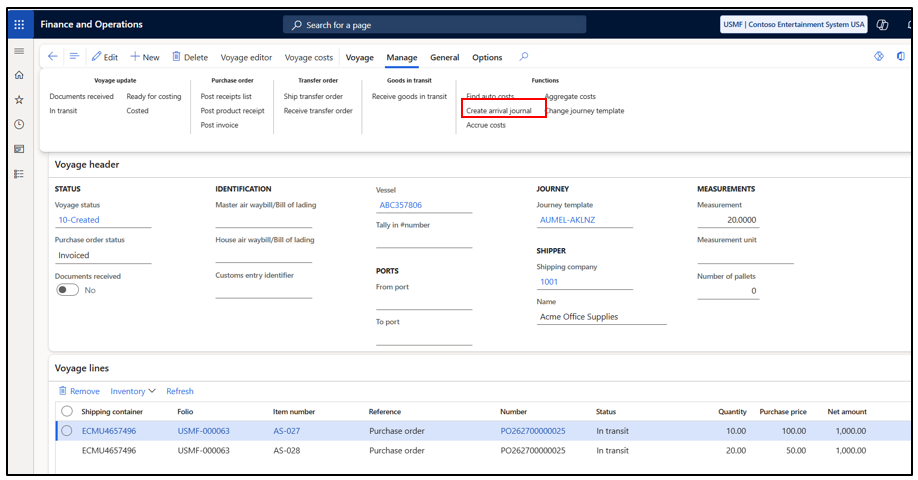
8) Click on create arrival journal to receive the in-transit quantity. Make sure to enable Good in transit quantity and Initialize quantity check box.
9) Edit the quantity and click on close, since remaining quantity won’t be received. Post the Item Arrival. Once the item arrival is posted, over/under transactions are created.
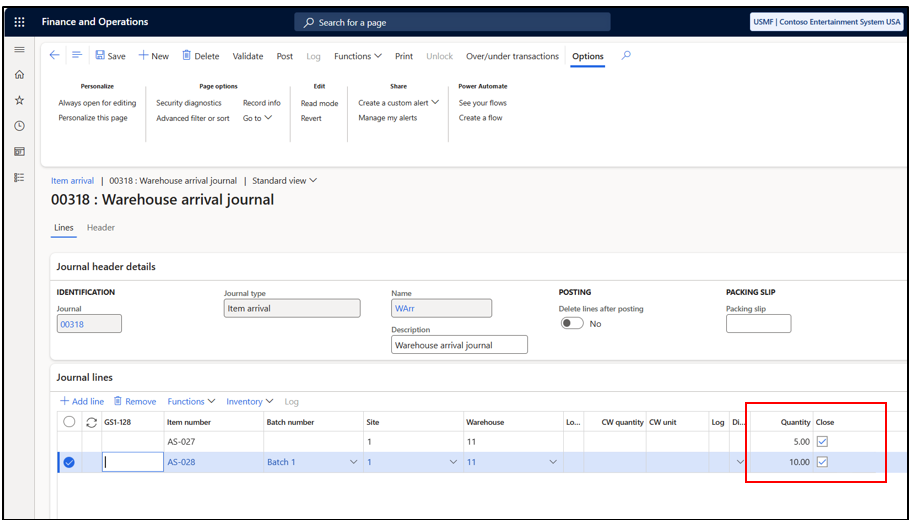
Note: After the item arrival is posted, the system automatically generates a Transfer Journal for the outstanding quantities 5 units for AS-027 and 10 units for AS-028. This transfer journal is posted to transfer quantity from GIT to Under delivery warehouse and from there it can be settled using a movement or purchase order.
You can either click on Over/Under transaction on Item arrival journal or navigate to Landed Cost -> Inquiries -> Over/under transaction
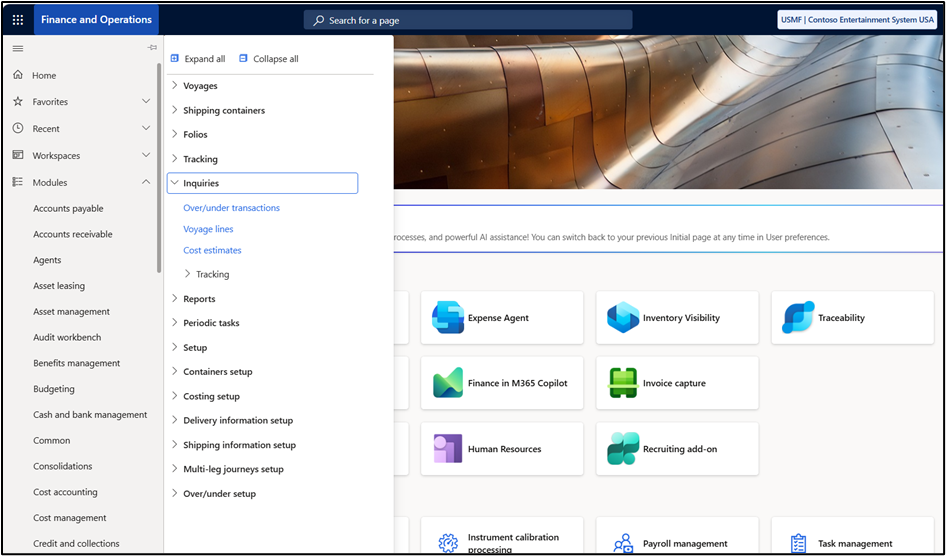
10) This form will show all the over and under transactions.
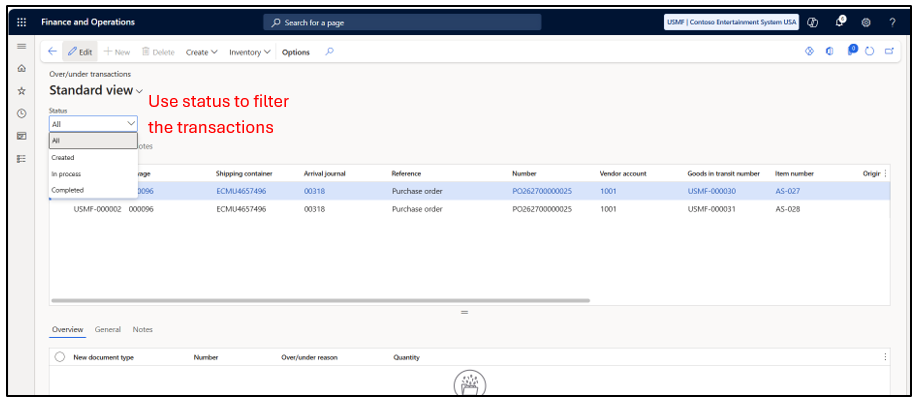
11) Select the transaction and click on create, to create movement or purchase order. (In this case we are manually settling the over/under transaction.
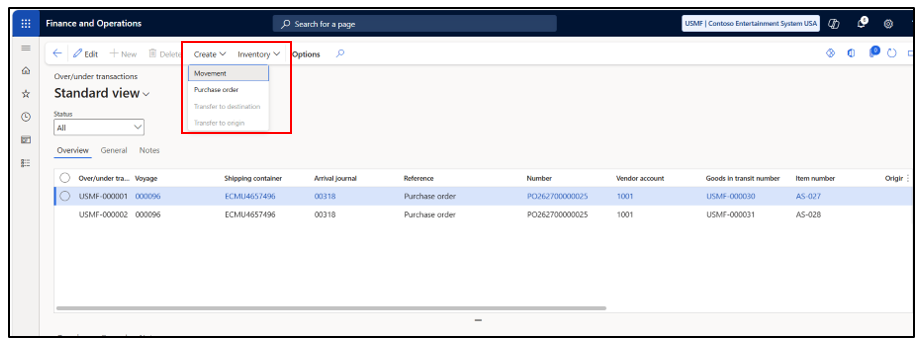
12) Let’s create movement for the Line 1. Specify the details and click on okay.
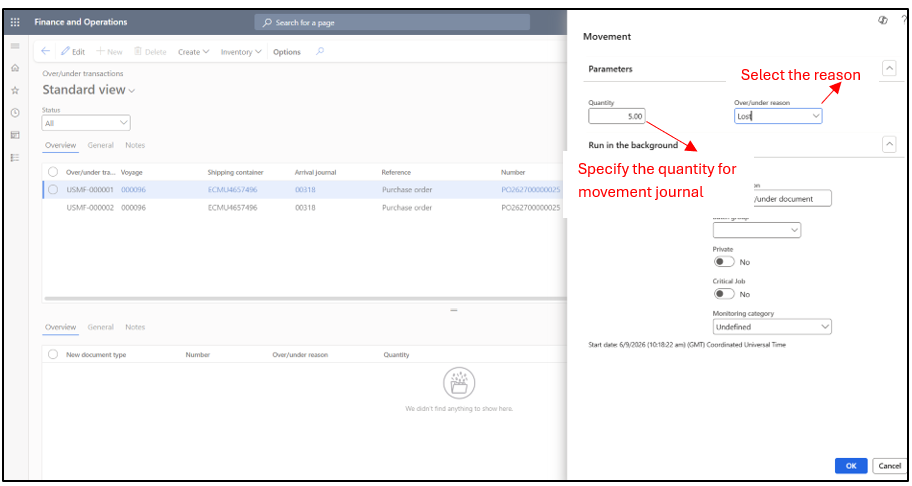
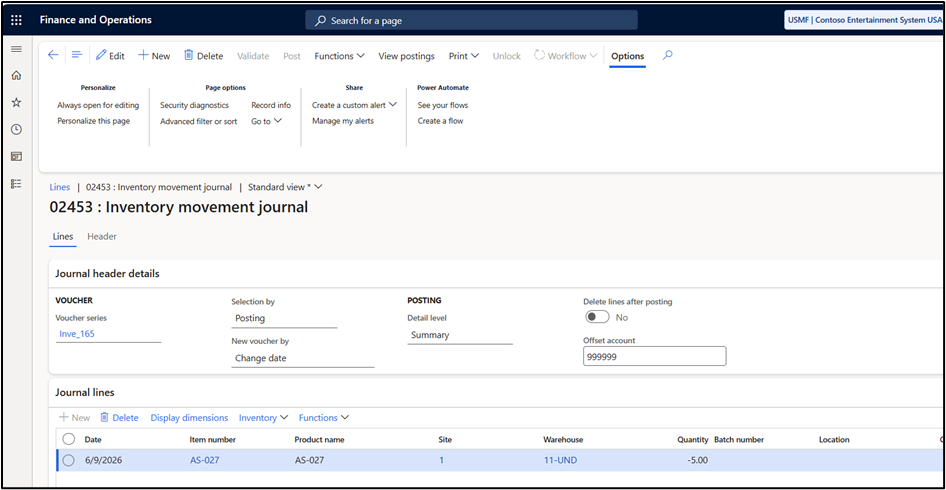
Note: Once user clicks on OK, the movement journal is directly posted.
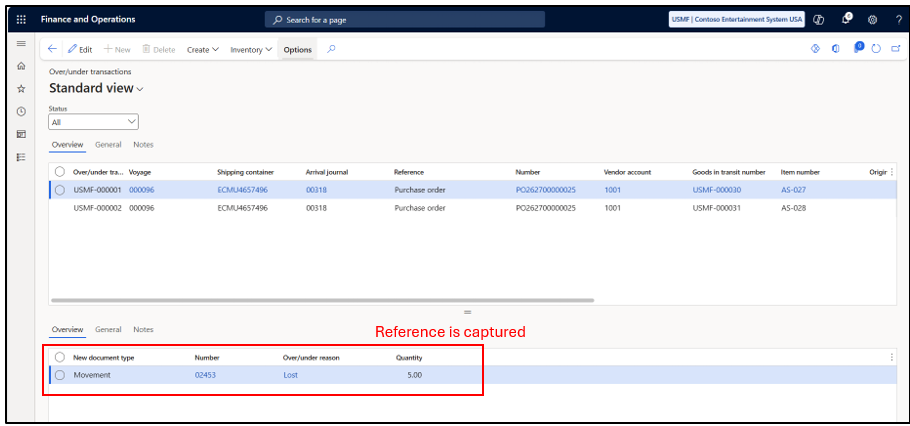
This movement journal is created to reduce the additional quantity from the under delivery warehouse.
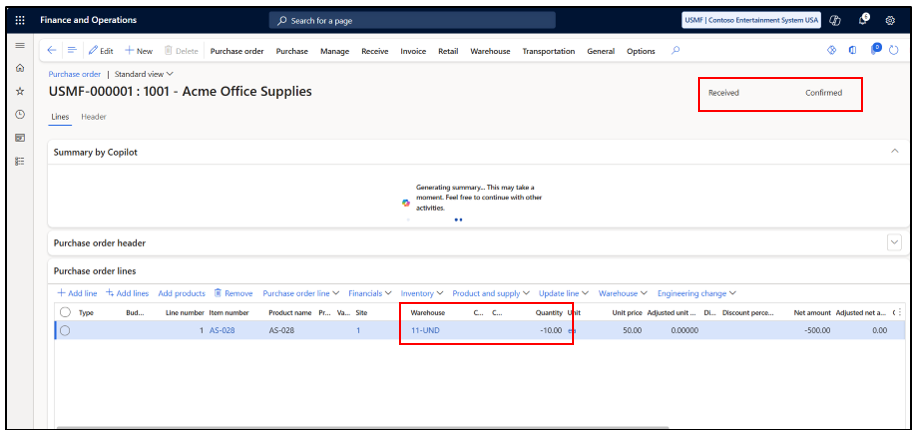
13) Creating purchase order for the line 2.
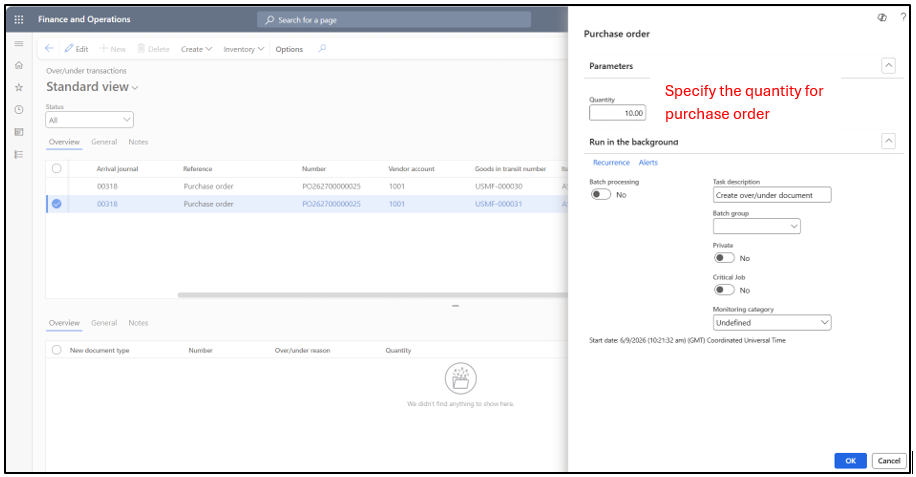
The Purchase order reference is captured. The transactions captures, the remaining quantity details, status etc.
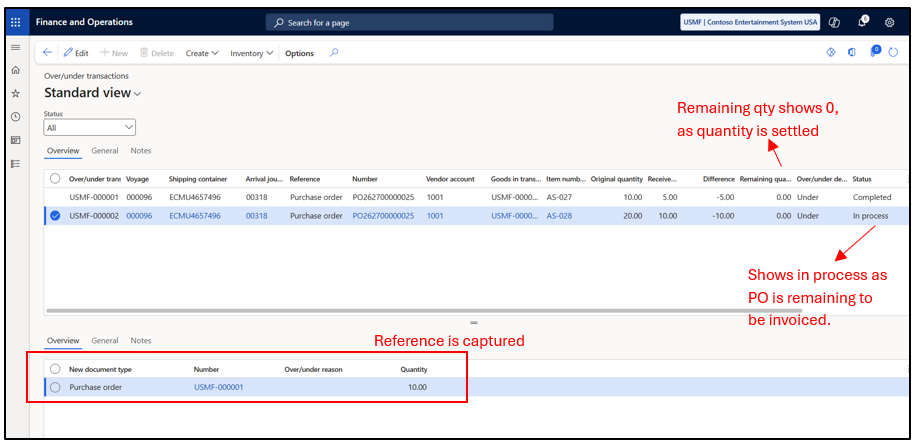
When a purchase order is created from this process, the system posts a product receipt automatically. However, invoices must always be manually posted for these purchase orders. Since this is an under-delivery, the purchase order shows a negative quantity, so that the vendor can pay for the missing goods. This negative quantity works as a vendor return or as credit for a future order.
Hope you found this helpful.
Thankyou.