A work order can be created in either of the following ways:
- Manually – Create a work order directly from a maintenance request (Corrective Maintenance) or Maintenance Schedule Lines (Preventive Maintenance).
- Automatically – Work Orders can be created automatically from Maintenance Schedule Lines. Maintenance Schedule Lines are automatically generated for preventive maintenance requests based on the Maintenance Plan assigned to the Asset. The system can be configured so that, when the batch job for creating Maintenance Schedule Lines is executed, it also automatically creates a corresponding Work Order.
Manual creation of Work Order:
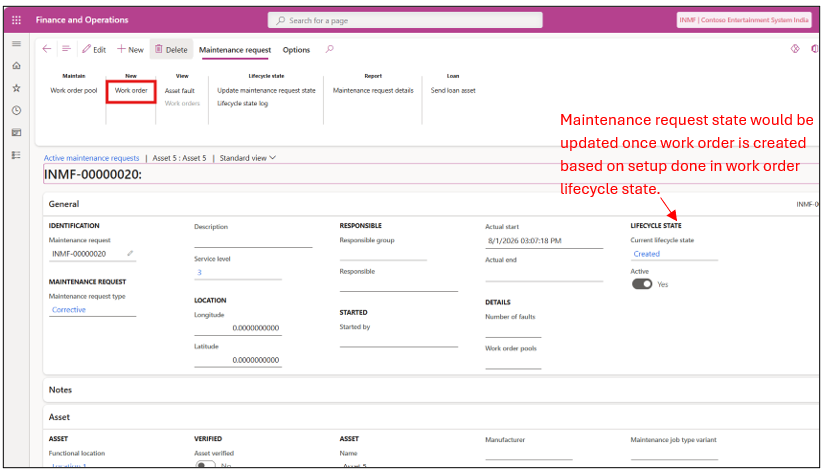
1) Navigate to Asset Management –> Maintenance Request –>All Maintenance Request
Or
Asset Management –>Maintenance Schedule –> Open Maintenance Schedule Lines
Select the maintenance request and click on Work Order on the Action Pane.
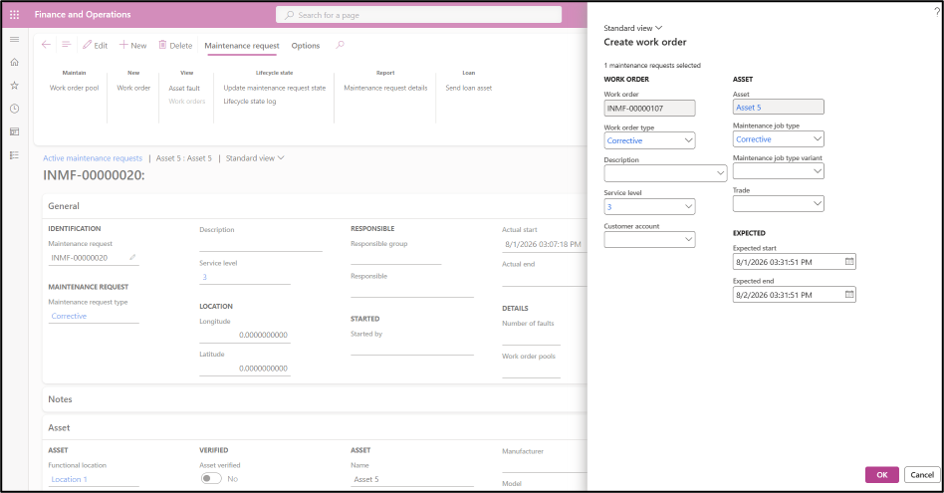
2) Specify the details to create a new work order.
3) Once work order is successfully created, the maintenance lifecycle is updated.
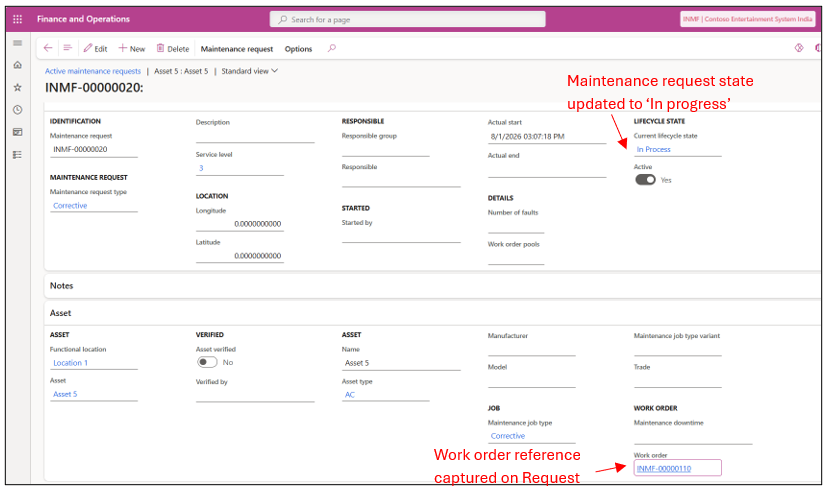
4) Click on Schedule, to schedule the actual work hours when maintenance will be performed.
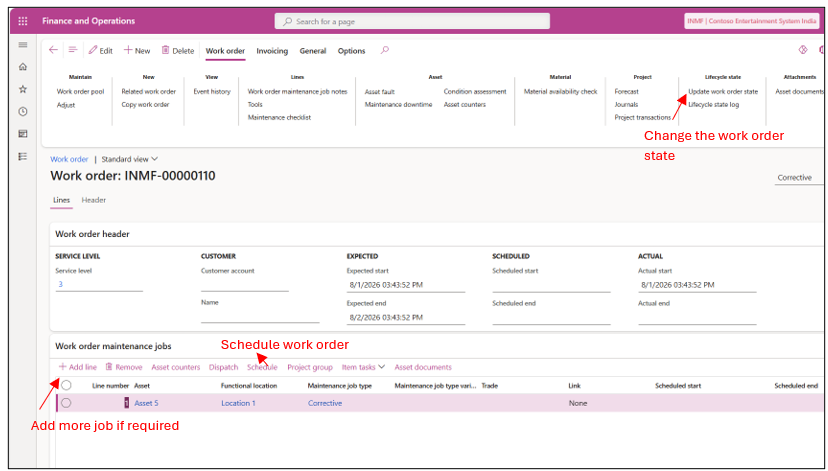
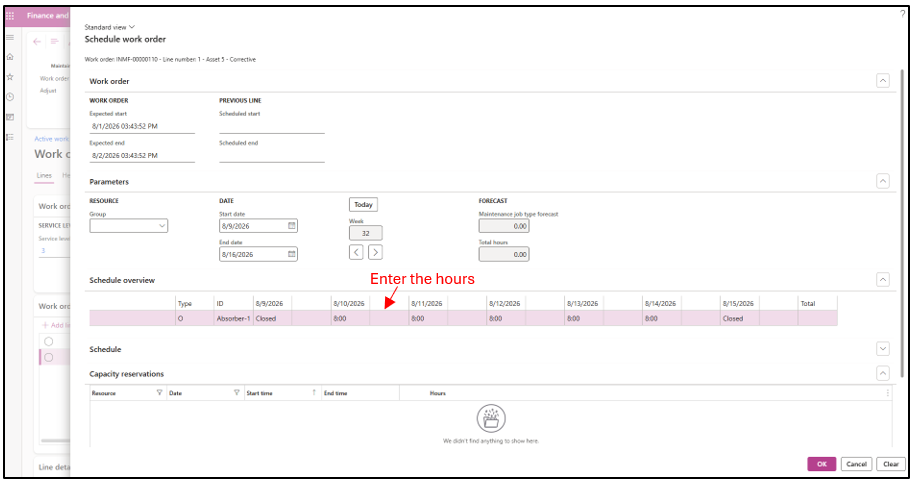
5) Users can schedule maintenance hours based on the work calendar. They can specify the number of hours required for maintenance on a machine. If a resource is assigned to the asset in the Asset Master, the specified maintenance hours will reserve the machine’s capacity for that duration. As a result, no production work can be scheduled for that resource during the reserved maintenance hours. You can view this is Capacity Reservation for that resource in Production Module.
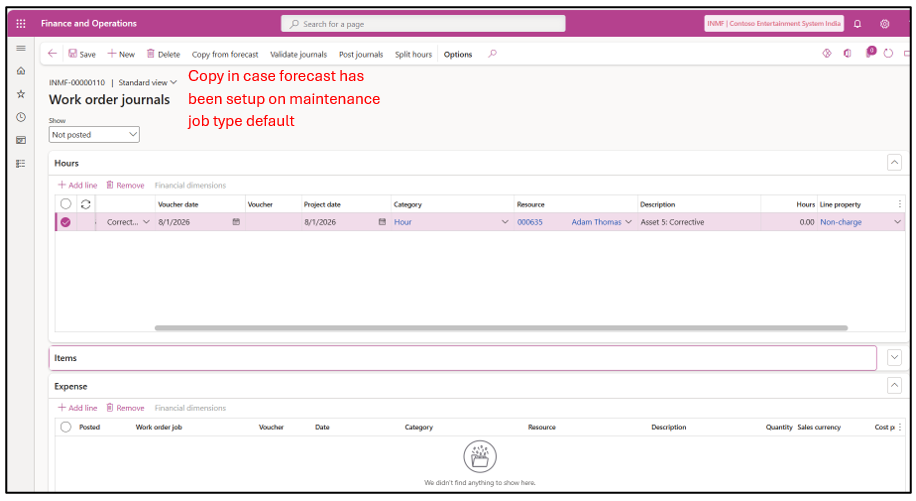
6) Once the actual maintenance work begins, the worker can record the expenses, items consumed, and hours spent during the maintenance activity using Journals. This allows all costs and resource consumption associated with the Work Order to be accurately captured and tracked.
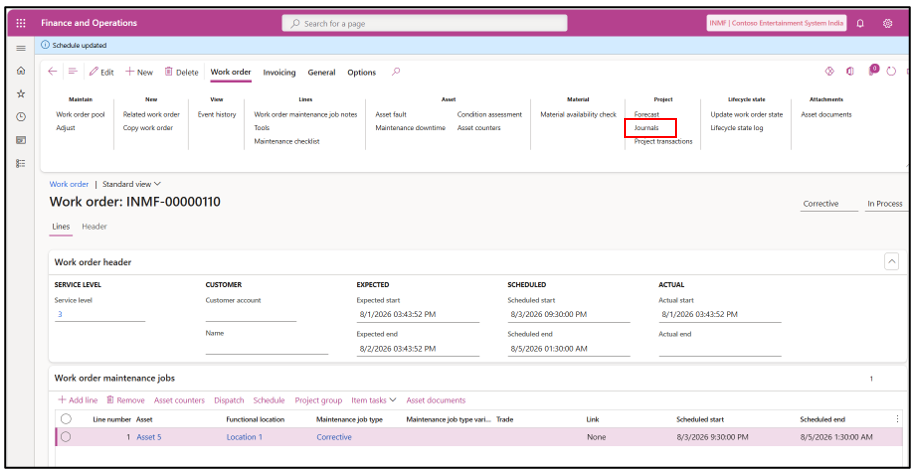
7) The user would only be able to create and post journals if it is allowed at that work order lifecycle state.
Specify the detail for item, expense or hours and post the journal.
Note: Copy from Forecast can be used when the company already has information about the items, expenses, and hours typically consumed during maintenance of a particular asset or asset type. The forecast can be configured in the Maintenance Job Type default form. When the actual work is performed on the work order, the user can use Copy from Forecast to bring the forecasted details into the work order.
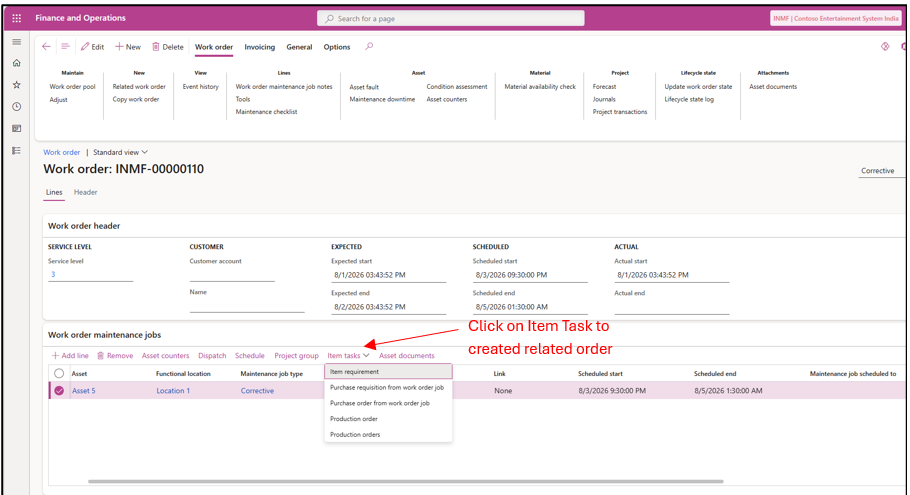
8) Users also have the option to create a Purchase Order, Production Order, or Purchase Requisition directly from the Work Order form. This allows the Work Order to be directly linked with the corresponding order. This is useful in case where Ex: a purchase needs to be done for a material for maintenance activity.
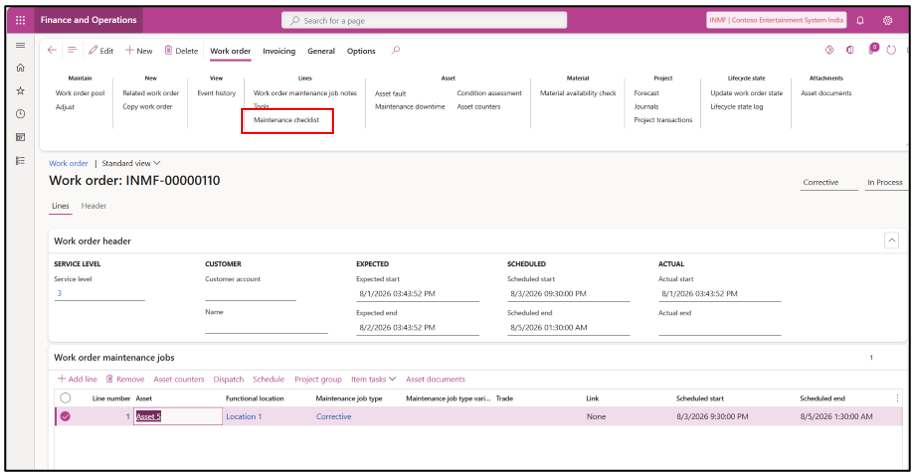
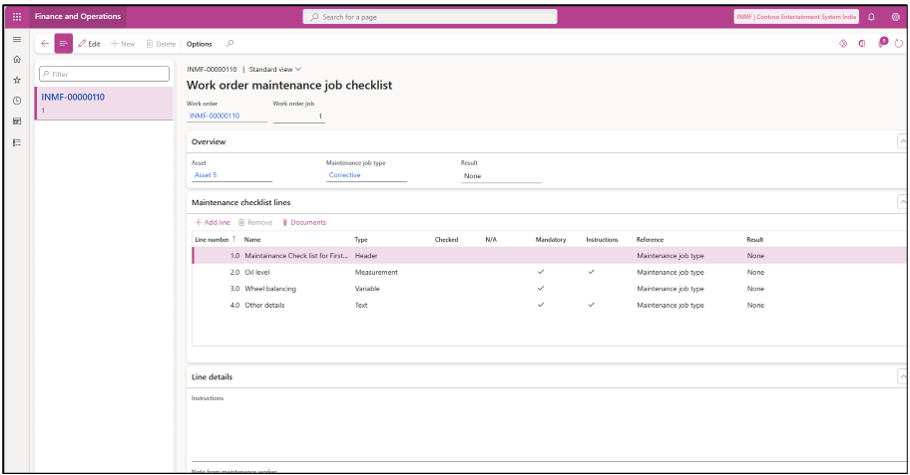
9) Once the maintenance activity is completed, the user can fill out the maintenance checklist to verify that all parameters are within the required standards.
10) Checklists are configured separately and can be associated with the Asset Type, Model, Asset, or other relevant criteria through the Maintenance Job Type default form. The maintenance checklist can also be configured as mandatory, ensuring that the required checks are completed before the maintenance activity is closed.
11) Once all the jobs associated with the Work Order have been completed, the user can update the Work Order status to Closed. At the same time, the Maintenance Request status will automatically be updated to Closed, and the Asset status will be changed back to Active, based on the Work Order lifecycle state configuration.
Automatic creation of Work Order
Work Orders can be created automatically by enabling the relevant parameter in the Scheduled Maintenance Plan & Round and Maintenance Plan setup.
1) Maintenance Schedule Plan : Mark the auto create flag as Yes and set the default work order type.
Asset Management –> Setup –> Preventive Maintenance –> Maintenance Plan/ Maintenance Rounds

2) Schedule Maintenance Plans
Asset Management –> Periodic –> Preventive Maintenance–> Schedule Maintenance Plans/Rounds

3) The remaining steps in the Work Order processing remain the same as discussed above.
Hope you found this helpful!
Thankyou.