For creating a work order against an asset maintenance request a Project Setup is required. This helps you track costs related to Asset Management on those projects. Different project can be created in Project Management module such as internal maintenance projects, service management projects, and investment projects.
Note: This blog covers the basic project management setup just for the purpose of Asset Management testing. However, a proper understanding of financial impact is required for appropriate project accounting ledger setup.
Project Management Setups
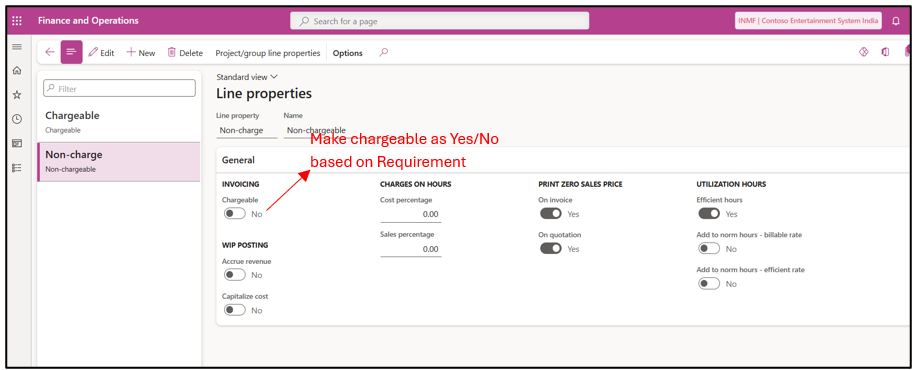
1) Line properties: It lets you specify if the project is going to be chargeable or non-chargeable. Create two-line properties: Chargeable and Non-Chargeable.
Project Management and accounting –> Setup –> Lines Properties –>Line Properties
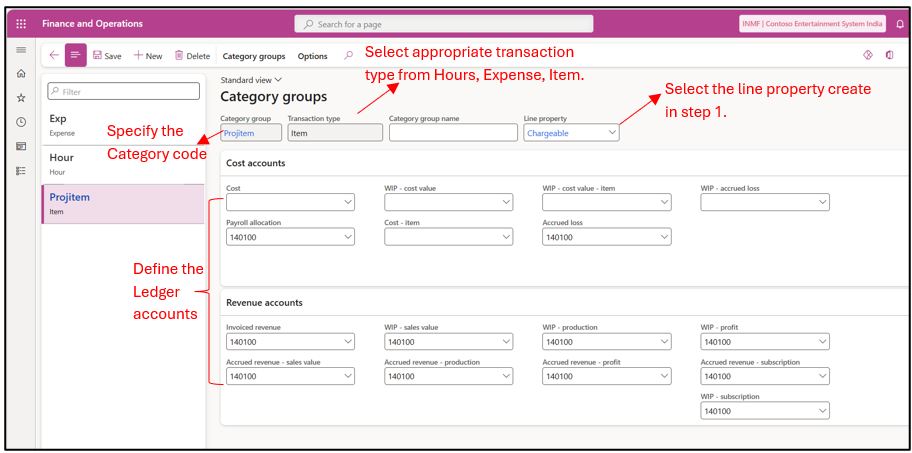
2) Category Group: These are set up to group transactions. For example: Consulting, Software license, Travels expense can be in different category groups, and each transaction can be booked under their respective category groups. Category groups let you share properties and posting profiles.
Project Management and Accounting → Setup → Categories → Category Groups.
Create three category groups: Item, Expense, and Hours and assign relevant transaction type. These category groups will be later used while booking the item, expense and hours used in during asset maintenance.
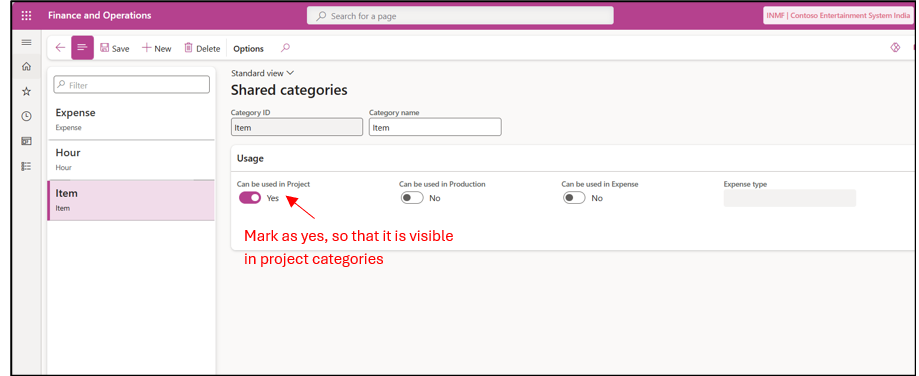
3) Shared categories Shared category is parent grouping of project categories that you can use across different modules. These are required to be created in order to create project categories in Step 4.
Project Management and accounting –> Setup –> Categories –> Shared Categories
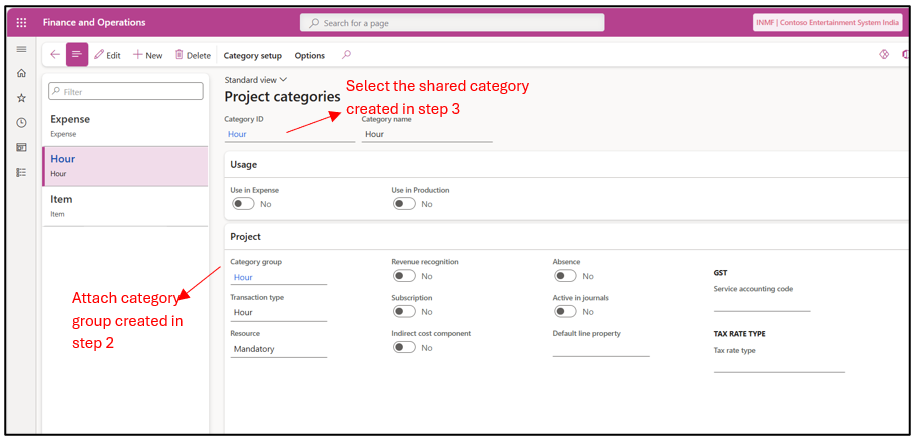
4) Project categories are the basic grouping for project transactions. For example: if Travel Expense in a category group, then project categories can be created as Airfare, Hotel, meals etc.
Project Management and accounting –> Setup –> Categories–> Project Categories
5) Project Group: Project can be of different types. It could be an internal project for tracking costs only, or it could be a revenue generating project. Project groups determine many of the fundamental accounting rules of how the project financials should be generated for a given project type.
Project Management and accounting –>Setup –> Posting –> Project Group
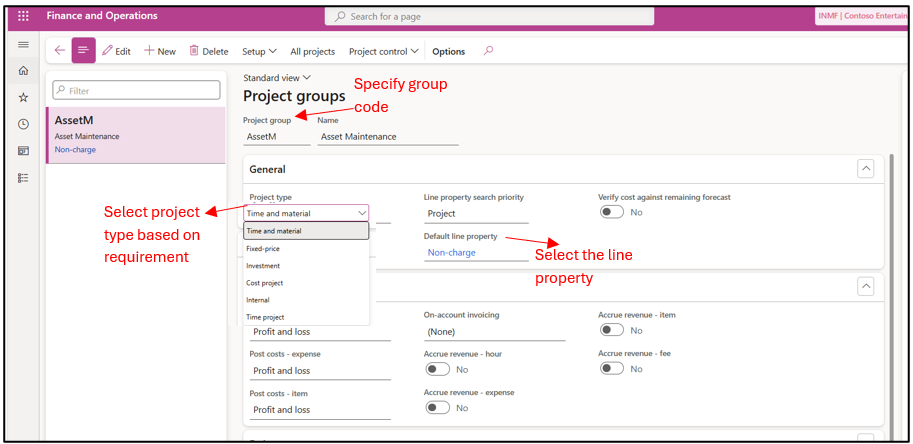
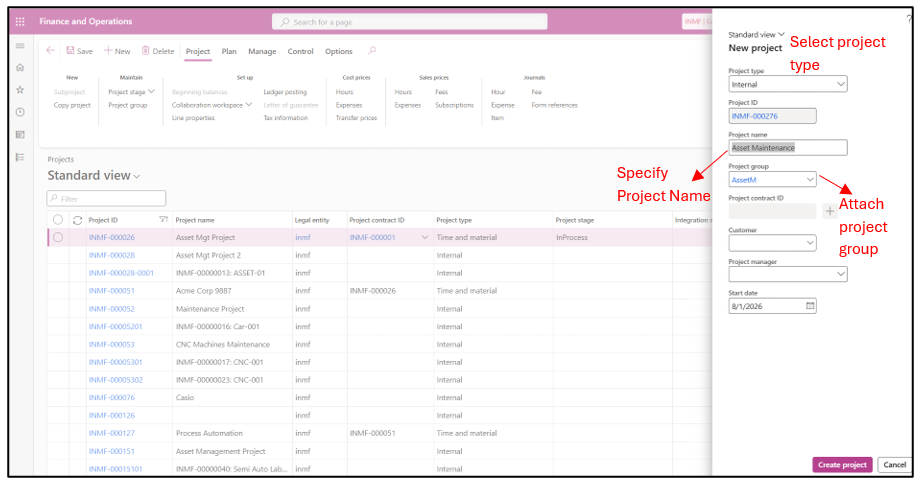
6) Project- Create a new project. The will be later linked with the Work order in Asset Management setup.
Project Management and accounting –>Projects–> All Project
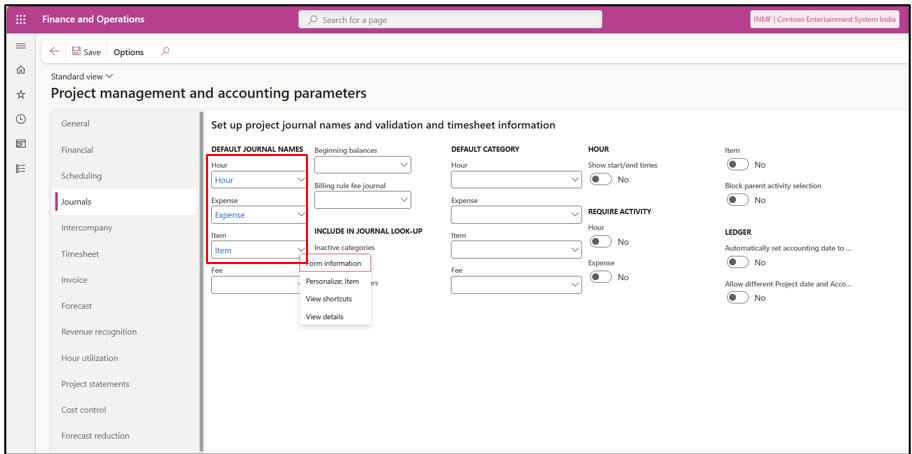
7) Project and Accounting Parameters
- Set default journal name: These journal names are created in different modules. You can use navigate using View details option and create the journals. These journals are used to book items, expenses, and hours against a work order. Navigate to Project Management Parameter –> Journal
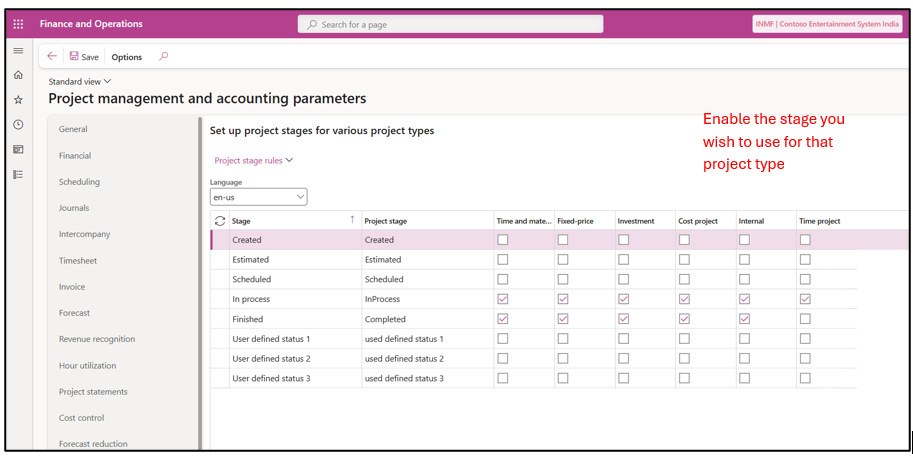
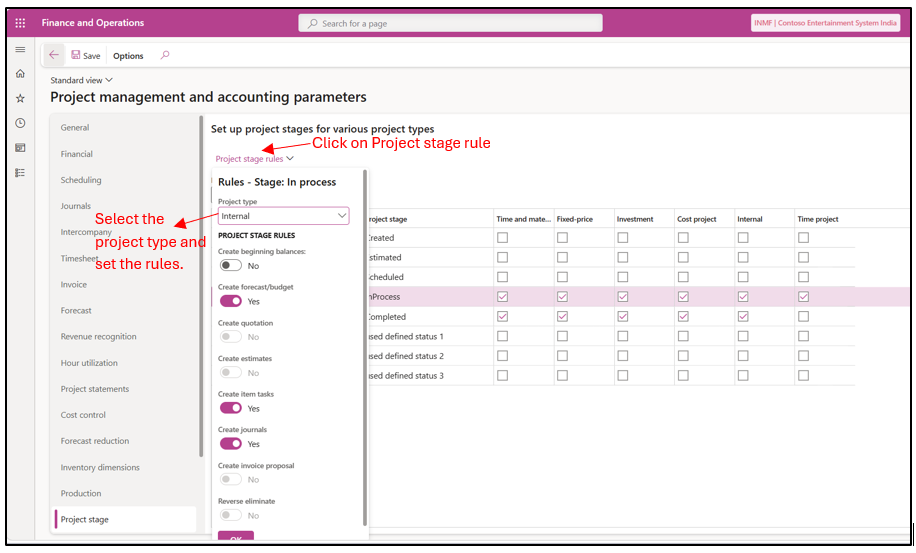
- Project Stage Setup- This setting controls which stages are available for a project type. In case of Asset Management this project stage would work in sync with the work order state. Navigate to Project Management Parameter –> Project Stage
- Project Stage Control- This setup controls the project stage rule. For example: If creating journal should be allowed at this project stage.
Asset Management Setups
1) Work Order State: Work order state tracks the status of the work order. It also allows to control functions that can be performed on a work order with this state.
Asset Management –> Setup–> Work Order–> Lifecycle State
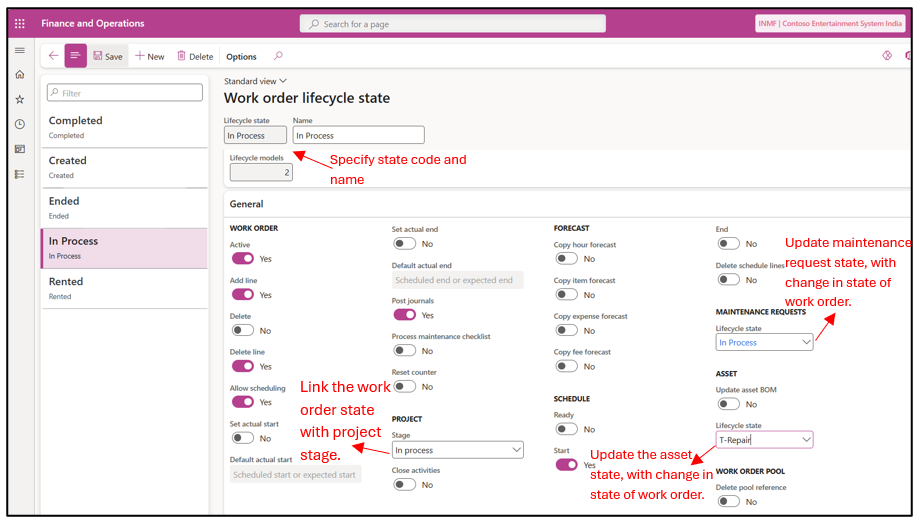
- Active: Set to Yes if the work order should remain active while it is in this lifecycle state.
- Add line: Set to Yes if users should be allowed to add new work order jobs while the work order is in this lifecycle state.
- Delete: Set to Yes if users should be allowed to delete the work order while it is in this lifecycle state.
- Delete line: Set to Yes if users should be allowed to delete individual work order jobs from the work order while it is in this lifecycle state.
- Allow scheduling: Set to Yes if the work order can be scheduled while it is in this lifecycle state.
- Set actual start: Set to Yes to prompt users to enter the actual start date and time when the work order is updated to this lifecycle state.
- Set actual end: Set to Yes to prompt users to enter the actual end date and time when the work order is updated to this lifecycle state.
- Post journals: Set to Yes if work order journals should be automatically posted when the work order is updated to this lifecycle state.
- Process maintenance checklist: Set to Yes to automatically process the maintenance checklist when the work order is updated to this lifecycle state. Any registrations are posted, checklist results are evaluated, and if any checklist line fails, the entire checklist is marked as Failed.
- Forecast: Set to Yes to copy forecast hours, items, and expenses from the default maintenance job type to the work order journal.
- Delete schedule lines: Set to Yes to remove the existing schedule for all work order jobs when a previously scheduled work order is updated to this lifecycle state. This deletes all associated capacity reservations for the asset, maintenance worker, and related tools.
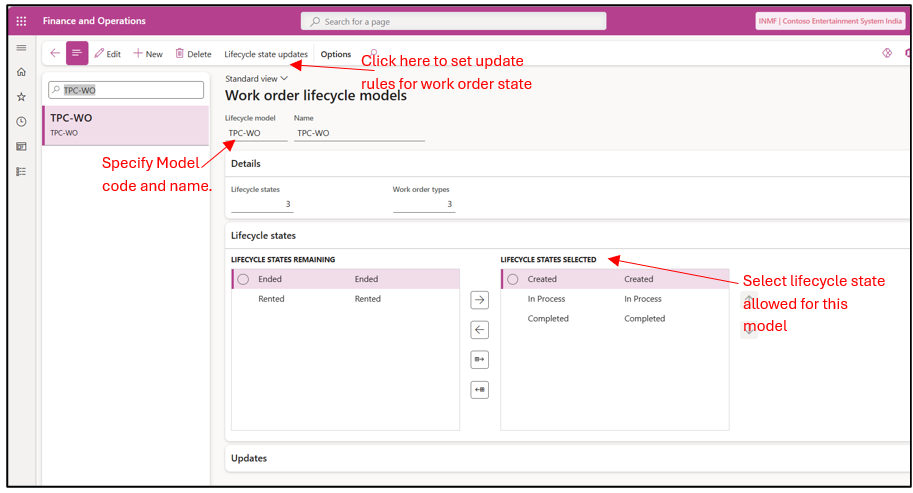
2) Work Order Model : Model is used to group work order lifecycle state that are to be used for particular type of Work orders. This will be further attached to Work order type.
Asset Management –> Setup–> Work Order–> Lifecycle Model
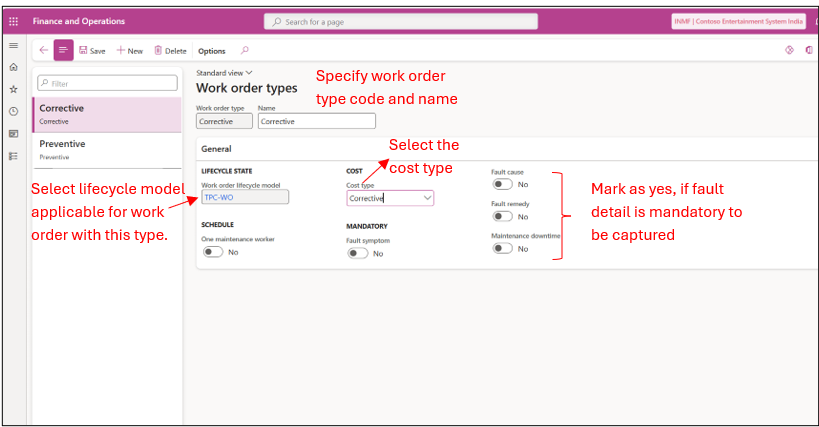
3) Work Order Type : It is used to group similar types of work order together. For example: Preventive, Corrective etc
Asset Management –> Setup–> Work Order–> Work Order Types
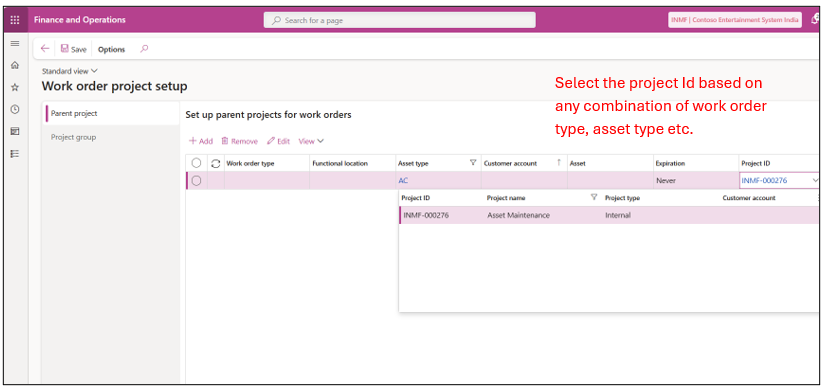
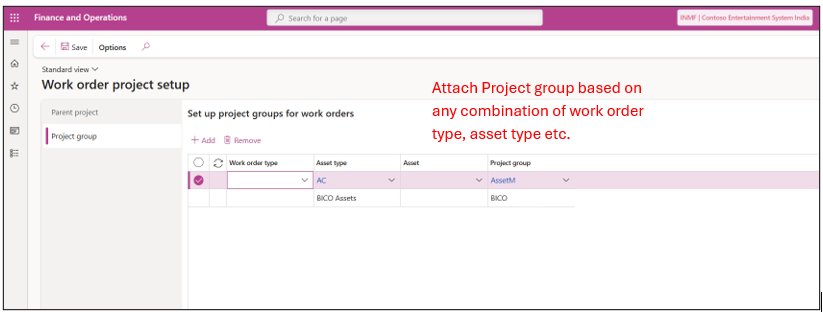
4) Project Setup: In Project setup, you can define project relation for the work orders.
Asset Management –> Setup–> Work Order–> Project Setup
- Parent Project : The user can specify the parent project that should be used for work order job in case no project is set on the asset.
- Project Group: Project groups can be used to create specific categories (groups) that are used for cost control. For example, by creating project groups for specific asset types or work order types, you can do detailed tracking of maintenance costs by type. Project groups aren’t mandatory. If you don’t set up project groups, the parent project is used.
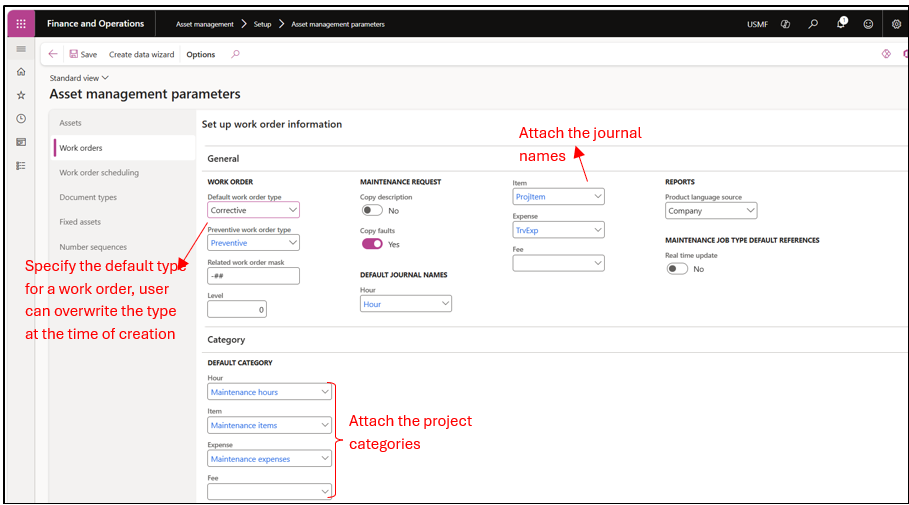
5) Asset Management Paramaters : Make the default setup.
Asset Management –> Setup –> Asset management parameters
Hope you found this helpful!
Thankyou.