SCENARIO
A Purchase Order was raised for 10 units; however, the vendor shipped only 5 units in the first voyage. The remaining quantity is expected to be delivered in subsequent shipments. Each voyage should be tracked separately, with landed costs allocated only to the quantity received in that specific shipment, while also capturing the open quantity on the Purchase Order.
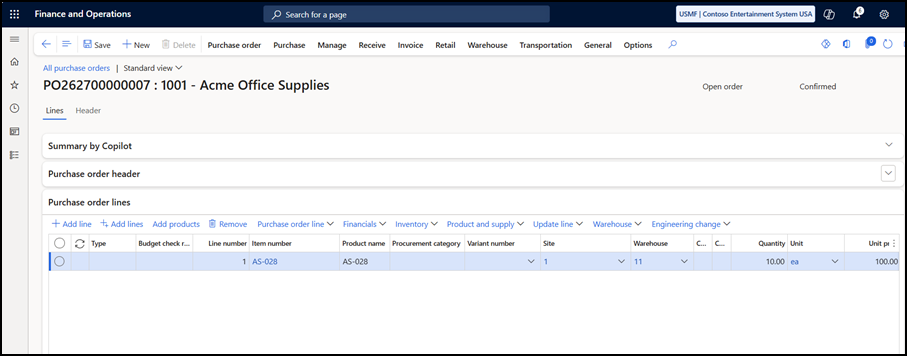
- Create a purchase order. Specify the item, quantity, price and delivery term. Confirm the purchase order.
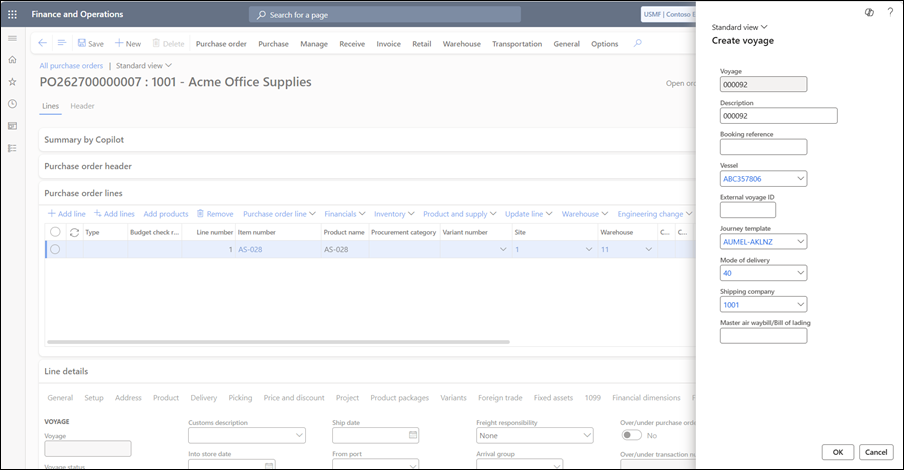
2) Create a Voyage. Specify vessel details, journey template. Click on OK.
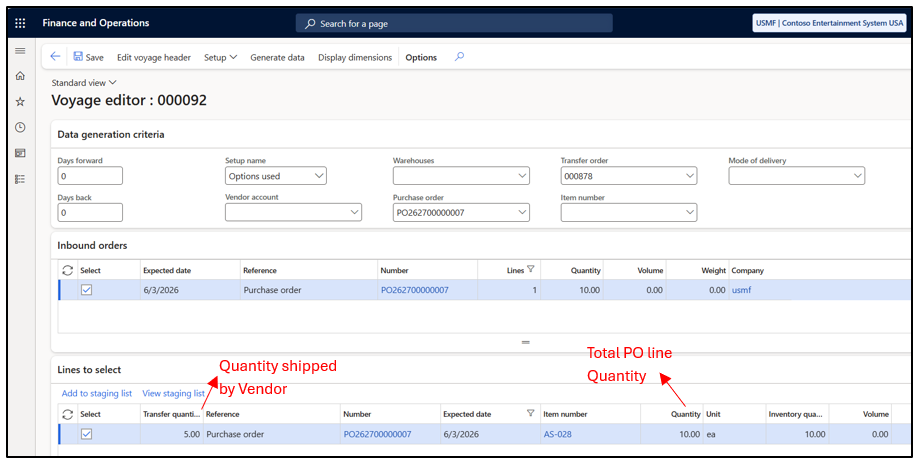
3) Generate data on Voyage Editor. Edit the quantity as vendor is currently shipping 5 units and remaining 5 units shall remain open. Add to Staging List.
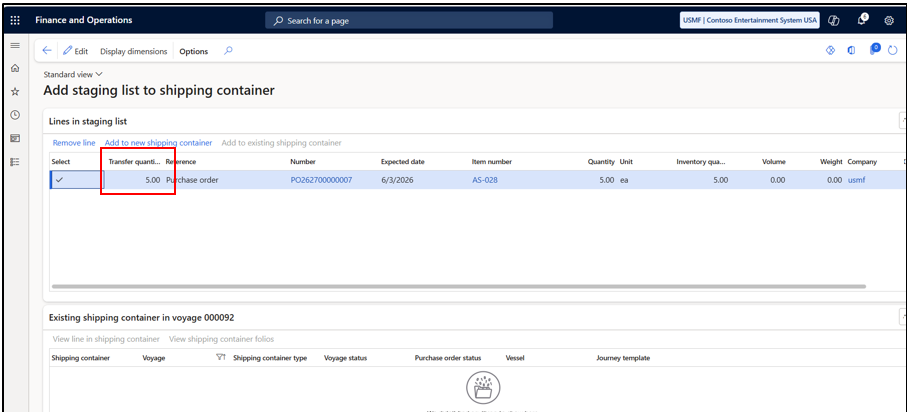
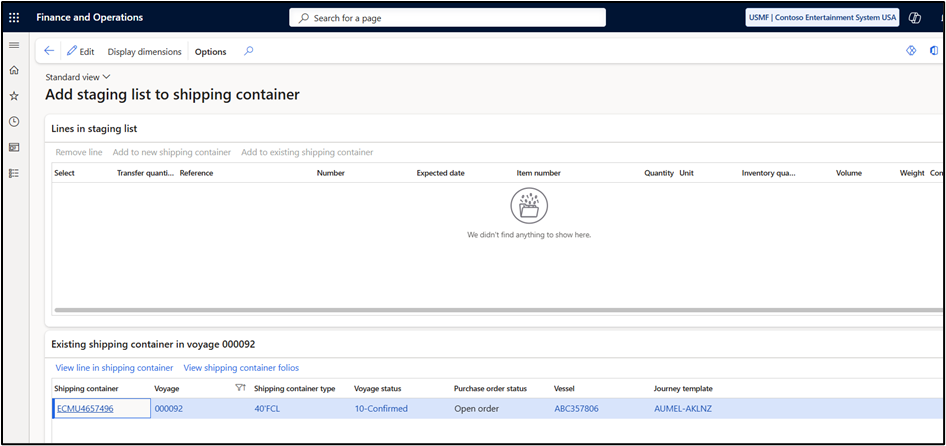
4) Verify the quantity on the Staging List. Click on add to new shipment container.
5) Voyage has been created.
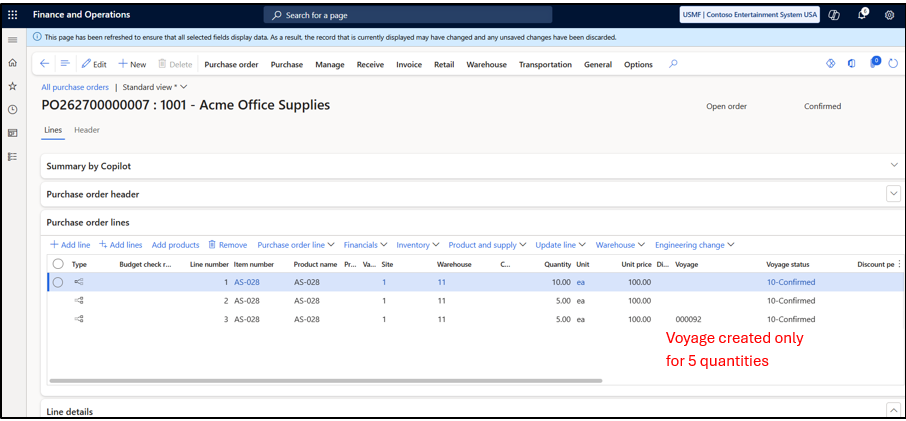
6) Check the purchase order, system automatically splits the line based on the transfer quantity specified above. Now these lines can be tracked separately by the user. Giving the user a view of Voyage details and status for each line.
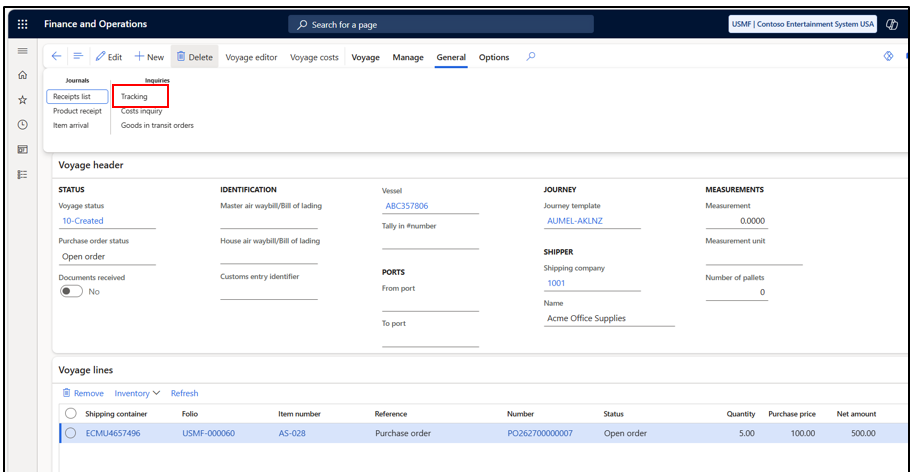
7) Track the end dates and status for each leg from Tracking form.
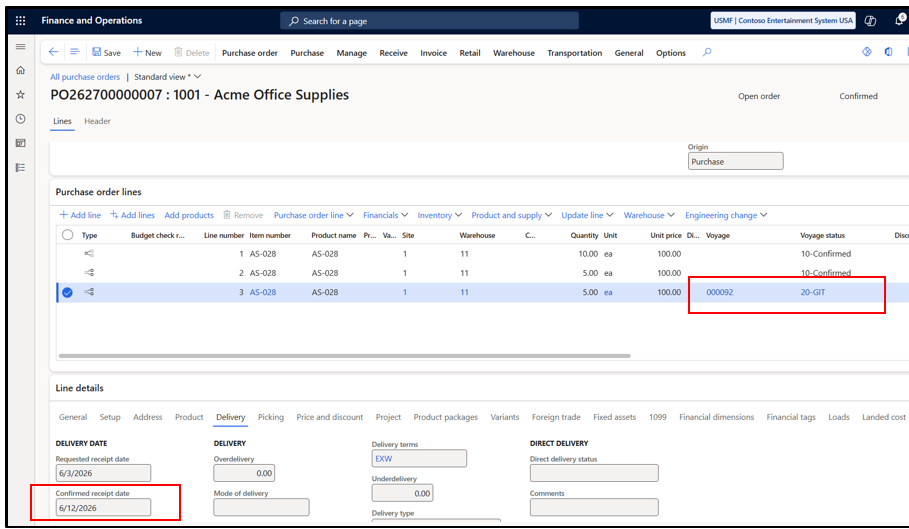
8) The status and delivery date has only been updated for the line for which the Voyage was created. The rest of the process remains the same.
Hope you found this helpful.
Thankyou.